On this page
- 01Key takeaways
- 02How do you set a homepage in WordPress?
- 03Which WordPress theme should you use?
- 04Do you need a page builder?
- 05Which plugins does a WordPress homepage really need?
- 06How do you keep it fast and secure?
- 07When is WordPress the wrong choice?
- 08What does this look like in practice?
- 09WordPress homepage checklist
- 10Next step
- 11Sources and further reading
- 12Frequently asked questions
Key takeaways
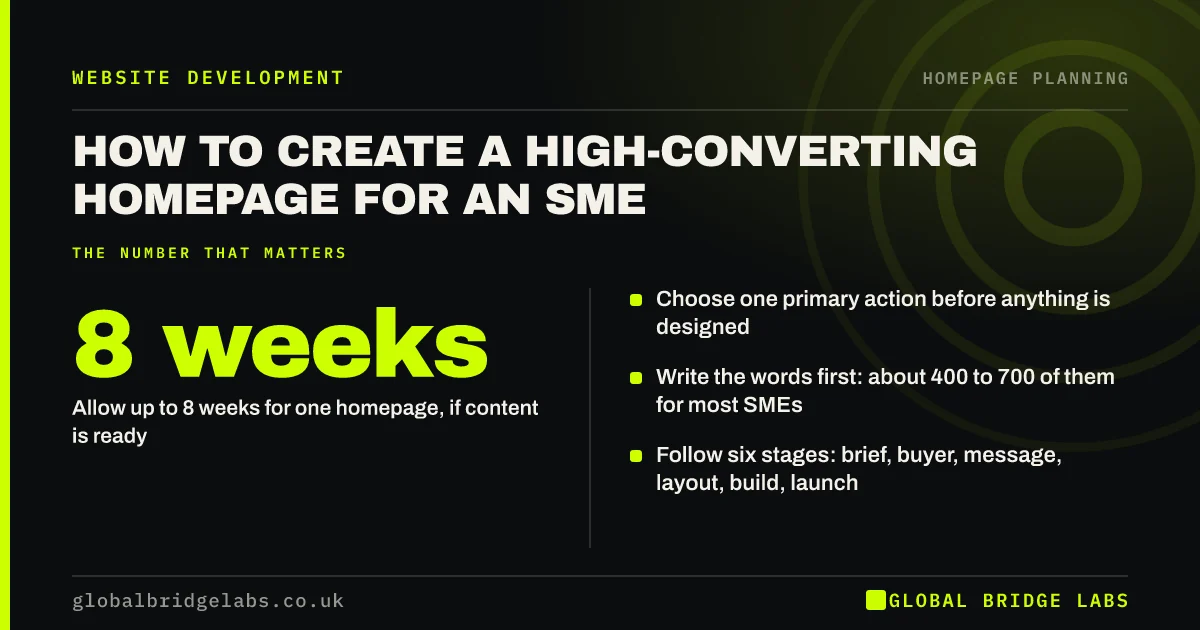
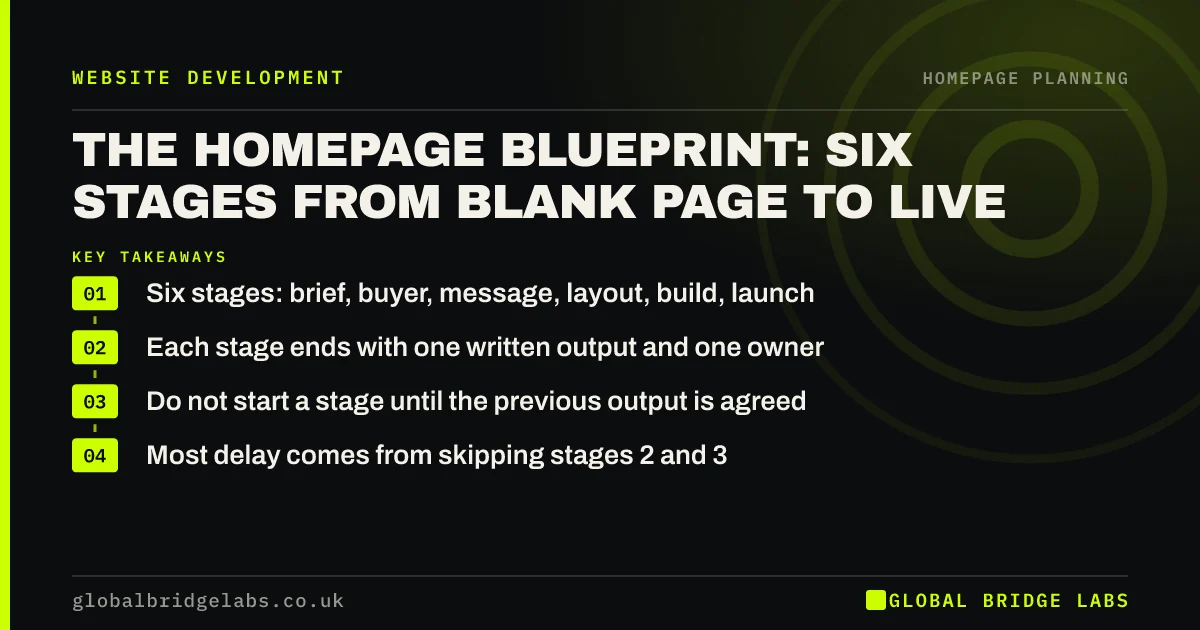
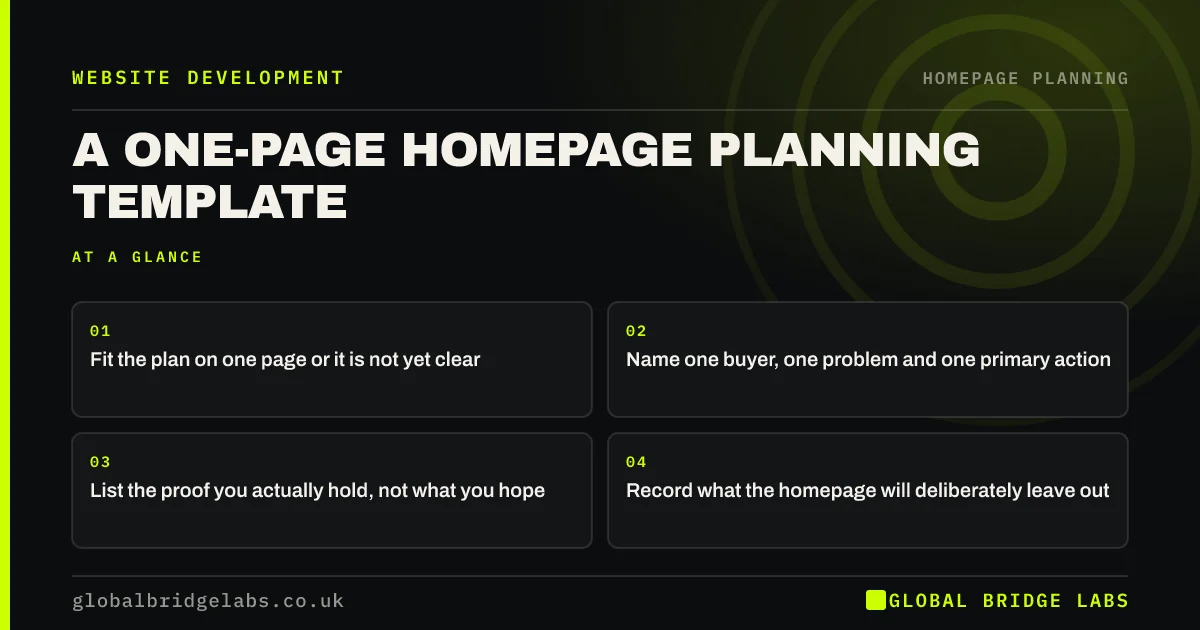
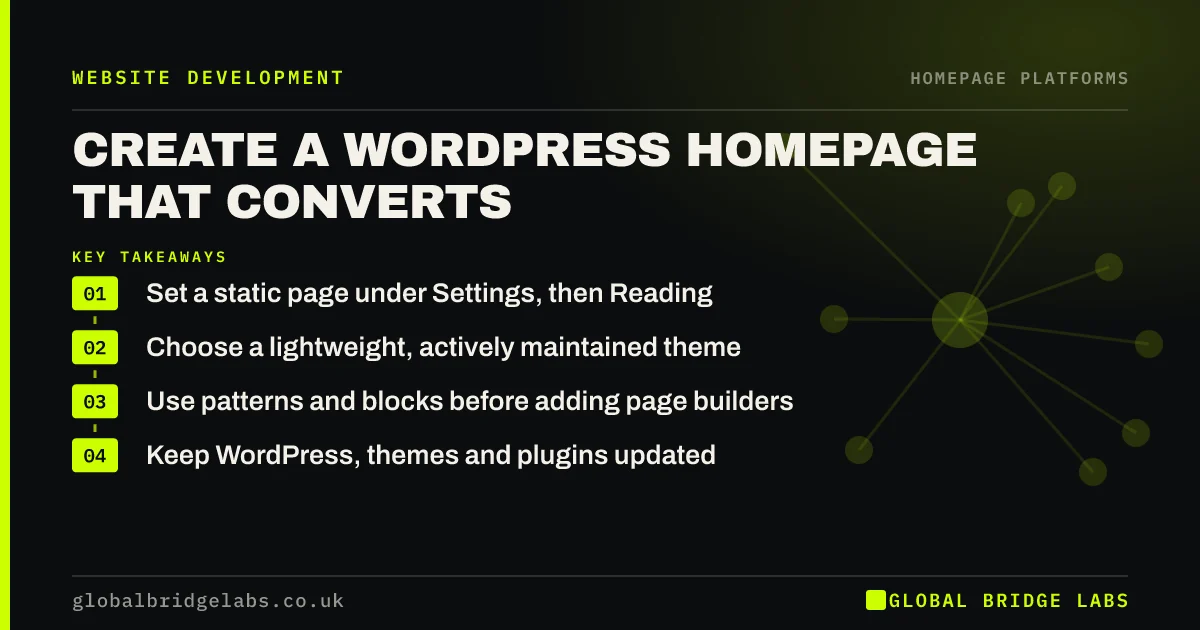
To create a WordPress homepage, publish a new page, go to Settings, then Reading, and choose it as your static homepage. Then build it with the block editor or a light theme, using one section per buyer question. Keep plugins to a minimum, because WordPress homepages usually slow down through add-ons rather than through WordPress itself.
- Set a static page under Settings, then Reading.
- Choose a lightweight, actively maintained theme.
- Use patterns and blocks before adding page builders.
- Keep WordPress, themes and plugins updated.
Building on WordPress? Message us on WhatsApp for a quick review.
Chat on WhatsApp →How do you set a homepage in WordPress?
Create a page called Home, publish it, then open Settings, then Reading, and select a static page under 'Your homepage displays'. Choose your new page there. Otherwise, WordPress may show your latest posts, which suits a blog but rarely suits a business. You can assign a separate page for posts.
Which WordPress theme should you use?
Use a lightweight, actively maintained theme. A block theme such as one of the official default themes is a sensible start, and it keeps code light. Check the theme's last update date and test speed before committing. Avoid large multipurpose themes unless you truly need what they bundle.
Do you need a page builder?
Often no. The block editor can now handle most SME homepages, with columns, groups and reusable patterns. Page builders give more visual control, but add code and tie your content to that plugin. Choose one only if it saves real time, and check the speed impact.
Which plugins does a WordPress homepage really need?
It usually needs very few: a form plugin, an SEO plugin, a caching solution and a backup tool. Each additional plugin adds risk, updates and possibly weight. Sliders, animations and social feeds are the usual offenders. Remove any plugin that does not earn its place on the page.
How do you keep it fast and secure?
Compress images, use caching, choose decent hosting and keep the PHP version supported. Update WordPress, themes and plugins regularly, and take a backup before any big change. Unmaintained sites are a common way in for attackers, so make it someone's job to keep things current.
When is WordPress the wrong choice?
It is the wrong choice if nobody will maintain it. WordPress gives you control, and you take on updates, backups and security in return. If you want no technical work at all, a hosted builder may suit you better. For a shop, Shopify often removes more work than it adds.
What does this look like in practice?
A pattern we see on small WordPress sites: a heavy theme, a page builder, a slider plugin and a dozen add-ons all loading on the homepage, some unused for years. Removing what the page does not need often improves speed noticeably before any other technical work starts.
WordPress homepage checklist
- Set a static homepage in Reading settings.
- Set a separate page for blog posts.
- Use a light, maintained theme.
- Delete unused plugins and themes.
- Compress every image.
- Set up backups and updates.
- Check speed on a phone.
Next step
Look at your plugin list and ask of each one: what would break on the homepage if I removed this? Test on a staging copy, not on your live site.
Message us on WhatsApp for a WordPress homepage review, or book a 30-minute consultation.
Chat on WhatsApp →Sources and further reading
- Theme Handbook · WordPress.org
- Advanced administration handbook: optimisation · WordPress.org
- Updating WordPress · WordPress.org
- Supported PHP versions and end-of-life dates · The PHP Group
Frequently asked questions
How do I make a page my homepage in WordPress?
Publish the page, go to Settings, then Reading, choose 'A static page' under 'Your homepage displays' and select it from the Homepage list. Save your changes, then view your site in a private browser window to confirm that it worked.
Why is my WordPress homepage slow?
Common causes are large images, a heavy theme, too many plugins, sliders and weak hosting. Run PageSpeed Insights to see what is loading, then work through these in turn, starting with the images, because they are usually the quickest gain.
Do I need a page builder for WordPress?
Not for most homepages. The block editor handles common layouts without another plugin. A builder can speed up design for some people, but it adds weight and ties your content to that tool, so make that choice deliberately.
Written by

Global Bridge Labs (GBL) is a UK–Sri Lanka partner for social media, websites and BPO. Everything here comes from client delivery, not theory.