On this page
- 01Key takeaways
- 02How do screen reader users move around a page?
- 03What makes navigation work with a screen reader?
- 04What breaks navigation for screen reader users?
- 05How do you test it?
- 06Who else benefits?
- 07What does this look like in practice?
- 08Screen reader navigation checklist
- 09Next step
- 10Sources and further reading
- 11Frequently asked questions
Key takeaways
Screen reader users rarely read a page from top to bottom. They jump by headings, landmarks and links, using lists of each to find what they need. Navigation works for them when headings are real and in order, the menu sits in a nav landmark, the main content is marked, every link makes sense on its own and dropdowns announce their state.
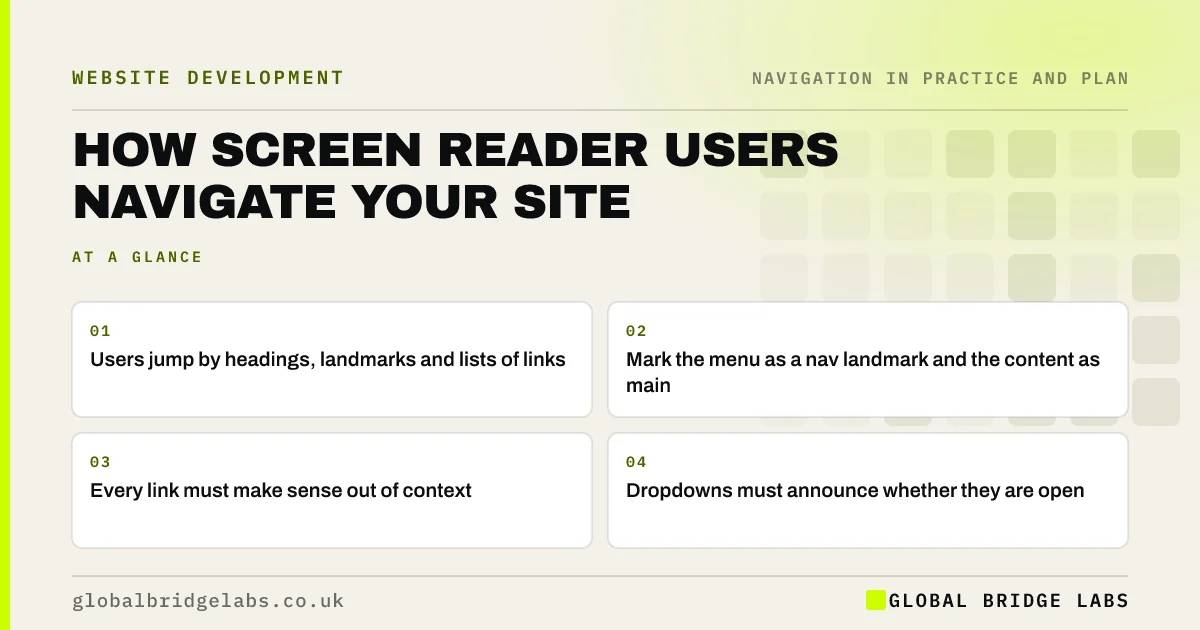
- Users jump by headings, landmarks and lists of links.
- Mark the menu as a nav landmark and the content as main.
- Every link must make sense out of context.
- Dropdowns must announce whether they are open.
Want your navigation tested with a screen reader? Message us on WhatsApp.
Chat on WhatsApp →How do screen reader users move around a page?
Screen readers such as JAWS, NVDA and VoiceOver offer shortcuts to jump between headings, landmarks, links and form controls, and to list them all. Many users start by listing headings to get an overview, then jump to the section they want. That is why structure in the code matters as much as the visual layout.
What makes navigation work with a screen reader?
The fixes are mostly about using the right HTML for each job.
- The menu in a nav element, with a label if there is more than one.
- The main content in a main element.
- One main heading and headings in order.
- A skip link to the main content.
- Link text that makes sense on its own.
- Dropdown toggles as buttons that announce expanded or collapsed.
- aria-current on the link to the current page.
What breaks navigation for screen reader users?
WebAIM's 2026 analysis of the top one million home pages found empty links, links with no text, on 46.3% of pages, and a main landmark on only 46.1%. Icon-only links, menus made of generic elements with click handlers, headings used for styling and dropdowns that open only on hover all add barriers.
- Descriptive link text: why 'click here' loses visitors
- Keyboard accessibility: can your site work without a mouse?
Want the common screen reader barriers fixed in your templates? Message us on WhatsApp and we will discuss your requirements.
Chat on WhatsApp →How do you test it?
Turn on VoiceOver on a Mac or iPhone, or install the free NVDA on Windows. List the headings and links on your homepage and a service page, and try to reach your contact page. Even a short session reveals unlabelled links and missing headings. Automated checkers catch some issues, not all.
- List headings: do they outline the page?
- List links: does each make sense alone?
- Jump to the main landmark.
- Open and close the menu and dropdowns.
- Reach the contact page.
Who else benefits?
The same structure helps people using voice control, keyboard users, search engines and AI tools, all of which rely on headings, landmarks and link text to understand a page. Clear structure in code is clear structure for every machine that reads your site.
What does this look like in practice?
A pattern we see: in a screen reader's links list, a homepage shows 'Learn more' six times, three unnamed icon links and 'Menu' twice. Naming the icons, making card headings the links and labelling the two nav regions turns the list into a usable map of the site.
Screen reader navigation checklist
- Menu in a labelled nav landmark.
- Main content in a main landmark.
- Headings in order.
- Working skip link.
- Every link named and unique.
- Dropdown toggles announce their state.
- aria-current on the active link.
Next step
Turn on your phone's screen reader for five minutes and try to find your own phone number.
Message us on WhatsApp for a screen reader navigation check, or book a 30-minute consultation.
Chat on WhatsApp →Sources and further reading
- The WebAIM Million: accessibility of the top 1,000,000 home pages · WebAIM
- Understanding WCAG 2.2 success criterion 2.4.1: Bypass Blocks · W3C
- Understanding WCAG 2.2 success criterion 2.4.6: Headings and Labels · W3C
- Menus tutorial · W3C Web Accessibility Initiative
Frequently asked questions
How do blind people navigate websites?
Many use screen readers, which read content aloud or to a braille display. Users move by headings, landmarks and links, often listing them to find what they need. Clear headings, labelled landmarks and descriptive links make sites navigable.
What are landmarks in web accessibility?
Landmarks are regions of a page, such as header, nav, main and footer, marked in the HTML so assistive technologies can list them and jump between them. They help screen reader users skip straight to the menu or main content.
Which screen reader should I test with?
NVDA on Windows is free and widely used; VoiceOver is built into Macs and iPhones; TalkBack is built into Android. Testing with one or two gives a good picture of common problems.
Written by

Global Bridge Labs (GBL) is a UK–Sri Lanka partner for social media, websites and BPO. Everything here comes from client delivery, not theory.