On this page
- 01Key takeaways
- 02What is a resource hub?
- 03How should a hub be organised?
- 04What should each resource link to?
- 05What about downloads?
- 06Where should the hub sit in the main menu?
- 07What does this look like in practice?
- 08Resource hub checklist
- 09Next step
- 10Sources and further reading
- 11Frequently asked questions
Key takeaways
A resource hub gathers guides, downloads, case studies and help in one place. It works when it is organised by the topics or tasks visitors care about, not by content type alone, offers a few filters and search once it grows, and links each resource to the related service. A hub that is only a long list by date becomes a dead end.
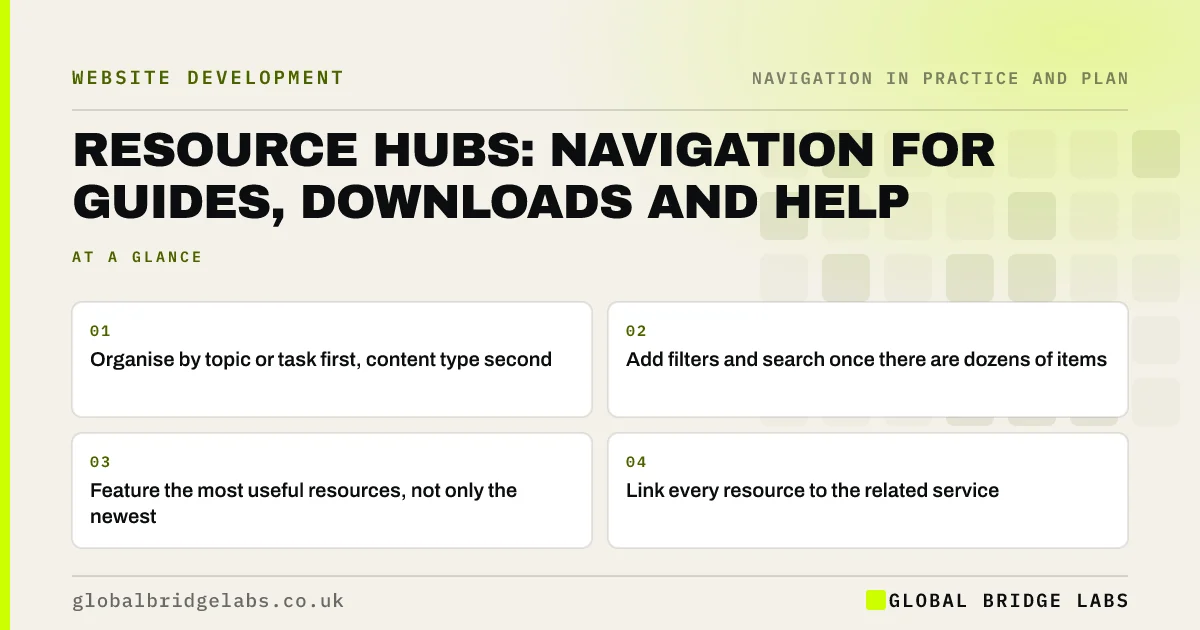
- Organise by topic or task first, content type second.
- Add filters and search once there are dozens of items.
- Feature the most useful resources, not only the newest.
- Link every resource to the related service.
Want your resource hub organised so visitors use it? Message us on WhatsApp.
Chat on WhatsApp →What is a resource hub?
A resource hub is a section of a website that collects useful content, such as guides, templates, case studies, webinars and help articles, in one navigable place. It serves visitors researching a problem and existing customers looking for help, and it supports search visibility by connecting related content.
How should a hub be organised?
Organise by what visitors want to achieve, then let them narrow by type.
- Topics or tasks matching your services, such as 'Planning' or 'Costs'.
- Content type as a filter: guide, template, case study, video.
- Audience as a filter if you serve distinct groups.
- A featured set of the most useful resources.
- Search once the hub passes a few dozen items.
What should each resource link to?
Each resource should link to related resources on the same topic and to the service it relates to. A guide to planning permission should lead to the extensions service; a case study should lead to the service it describes. Without those links, the hub becomes a dead end for buyers.
Want your resources linked to your services properly? Message us on WhatsApp and we will discuss your requirements.
Chat on WhatsApp →What about downloads?
Label downloads with file type and size, publish key content as web pages as well as PDFs, and do not hide useful resources behind forms unless the exchange is worth it to the visitor. Gated content cannot be read by search engines or AI tools.
Where should the hub sit in the main menu?
Usually towards the end of the main menu, labelled 'Guides', 'Resources' or 'Help', depending on what it holds. For a help centre aimed at existing customers, link it from the utility area or account area too. Vague labels such as 'Insights' tell visitors little.
What does this look like in practice?
A pattern we see: a firm's 'Resources' page lists 70 items newest first, mixing news, guides and case studies. Grouping by four topics, adding type filters and featuring five essential guides at the top lets visitors find the useful items, and links from each guide lead to the service.
Resource hub checklist
- Topics or tasks as the main grouping.
- Type and audience as filters.
- Featured essentials at the top.
- Search once the hub is large.
- Each resource linked to its service.
- Downloads labelled with type and size.
Next step
Look at your resources page and check whether the five most useful items are visible without scrolling.
Message us on WhatsApp for a resource hub review, or book a 30-minute consultation.
Chat on WhatsApp →Sources and further reading
- Filters vs. facets: definitions · Nielsen Norman Group
- Search: visible and simple · Nielsen Norman Group
- PDF: still unfit for human consumption, 20 years later · Nielsen Norman Group
Frequently asked questions
How should I organise a resource centre?
By the topics or tasks your visitors care about, with content type and audience as filters. Feature the most useful resources at the top, add search once there are dozens of items and link each resource to the related service.
What should I call my resources section?
Use the word that describes what it holds and what visitors expect: 'Guides' for how-to content, 'Help' for customer support content, 'Resources' for a mix. Avoid vague labels such as 'Insights' or 'Knowledge'.
Should resources be gated behind a form?
Only when the resource is valuable enough that visitors are happy to exchange details. Gated content cannot be read by search engines or AI tools, so keep most guides open and gate only substantial tools or templates.
Written by

Global Bridge Labs (GBL) is a UK–Sri Lanka partner for social media, websites and BPO. Everything here comes from client delivery, not theory.