
On this page
- 01Key takeaways
- 02How does Shopify navigation work?
- 03How should collections be organised?
- 04How deep should a Shopify menu go?
- 05What supports the menu?
- 06What are the common Shopify navigation mistakes?
- 07What does this look like in practice?
- 08Shopify navigation checklist
- 09Next step
- 10Sources and further reading
- 11Frequently asked questions
Key takeaways
In Shopify, menus are managed in the Navigation settings, usually a main menu and a footer menu, and point mainly to collections. Organise collections the way shoppers browse, by product type, need or occasion, keep top-level items few and use nested items for subcategories. Support the menu with filters and search, and check your theme's mobile menu.
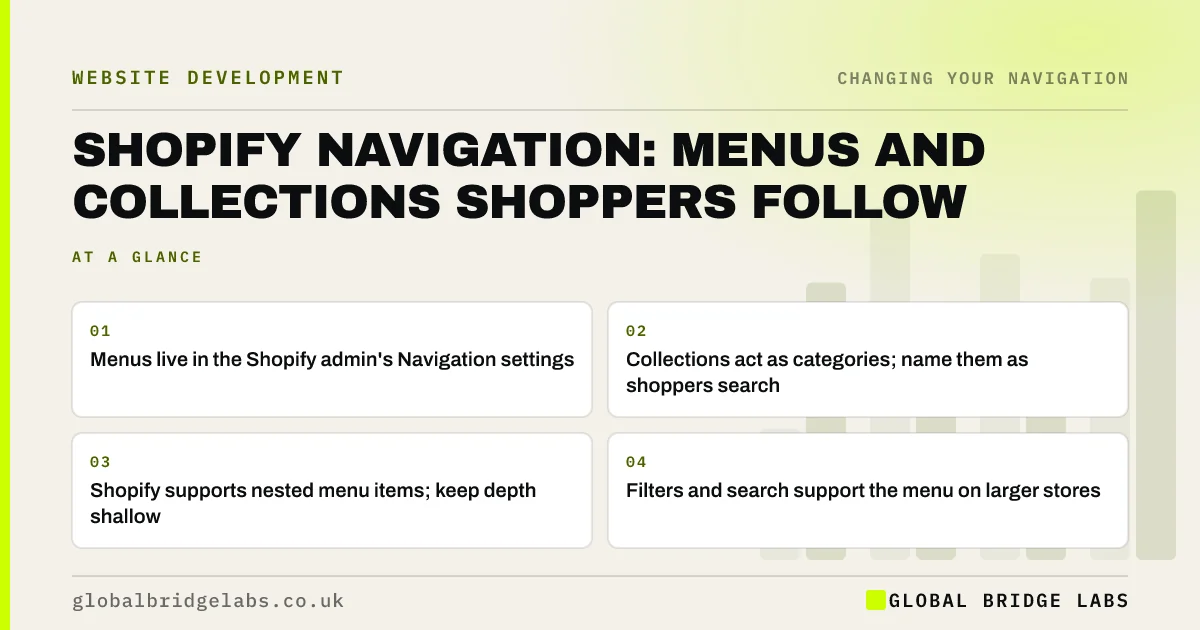
- Menus live in the Shopify admin's Navigation settings.
- Collections act as categories; name them as shoppers search.
- Shopify supports nested menu items; keep depth shallow.
- Filters and search support the menu on larger stores.
Want your Shopify menus and collections restructured? Message us on WhatsApp.
Chat on WhatsApp →How does Shopify navigation work?
Shopify stores menus in the admin under Online Store, Navigation, typically a main menu and a footer menu that the theme displays. Each menu item links to a collection, product, page, blog or URL, and items can be nested under a parent. How nested items appear, as dropdowns or mega menus, depends on the theme. Check current Shopify documentation for limits.
How should collections be organised?
Collections are your categories. Organise them the way shoppers browse: by product type for most shops, by need or occasion for gift and lifestyle shops. Name them in shoppers' words. A product can sit in several collections, so shoppers who browse by type and by occasion can both find it.
- Top-level collections by product type or need.
- Subcategory collections nested under them.
- Occasion or gift collections as a separate branch.
- Names that match search terms.
- A clear 'All products' or 'Shop all' route.
How deep should a Shopify menu go?
Two levels suit most small shops: a category and its subcategories. Deeper nesting may be supported but becomes hard to use, especially on phones. If you have many subcategories, a mega menu in the theme can show them in groups on desktop, with filters to narrow further.
- Mega menus: when a small business website needs one
- Product filters and faceted navigation for small shops
Want your collection structure planned before you rebuild menus? Message us on WhatsApp and we will discuss your requirements.
Chat on WhatsApp →What supports the menu?
Filters on collection pages, such as size, colour and price, let shoppers narrow results without deeper menus. Shopify's Search and Discovery app can configure filters and search synonyms. Search should be visible in the header on any store with more than a few dozen products.
What are the common Shopify navigation mistakes?
The common mistakes are menus organised by supplier or internal codes, collections with one or two products, mobile menus that hide subcategories behind unclear arrows, and themes or apps that slow the menu. Test on a phone, where most shoppers browse.
What does this look like in practice?
A pattern we see: a gift shop's menu lists 14 collections at the top level, several holding only a few products. Grouping them into four product types and one 'Gifts by occasion' branch, with filters for price and recipient, makes the menu scannable on a phone.
Shopify navigation checklist
- Main menu with a few top-level collections.
- Subcategories nested one level down.
- Collections named in shoppers' words.
- Filters on collection pages.
- Visible search on larger stores.
- Mobile menu tested on a phone.
Next step
Open your store on a phone and try to reach a subcategory from the menu in three taps.
Message us on WhatsApp for a Shopify navigation review, or book a 30-minute consultation.
Chat on WhatsApp →Sources and further reading
- Filters vs. facets: definitions · Nielsen Norman Group
- Mega menus work well for site navigation · Nielsen Norman Group
- Web performance for your online store · Shopify Help Center
Frequently asked questions
How do I edit navigation in Shopify?
In the Shopify admin, open the online store's Navigation settings, choose the main or footer menu and add, nest or reorder items. Your theme decides how the menu displays, including dropdowns and mobile behaviour.
How should I organise Shopify collections?
By how shoppers browse: usually product type, sometimes need or occasion. Name collections in shoppers' words, avoid collections with very few products and use filters for attributes such as size, colour and price.
Does Shopify support mega menus?
Many Shopify themes display nested menu items as a mega menu on desktop. Check your theme's settings. Keep the groups clear and test the mobile version, which usually shows the same items as an expandable list.
Written by

Global Bridge Labs (GBL) is a UK–Sri Lanka partner for social media, websites and BPO. Everything here comes from client delivery, not theory.