On this page
- 01Key takeaways
- 02Where do WordPress menus live?
- 03How should you structure the menu?
- 04Why do mobile menus drift in WordPress?
- 05What are the common WordPress menu mistakes?
- 06What does this look like in practice?
- 07WordPress menu checklist
- 08Next step
- 09Sources and further reading
- 10Frequently asked questions
Key takeaways
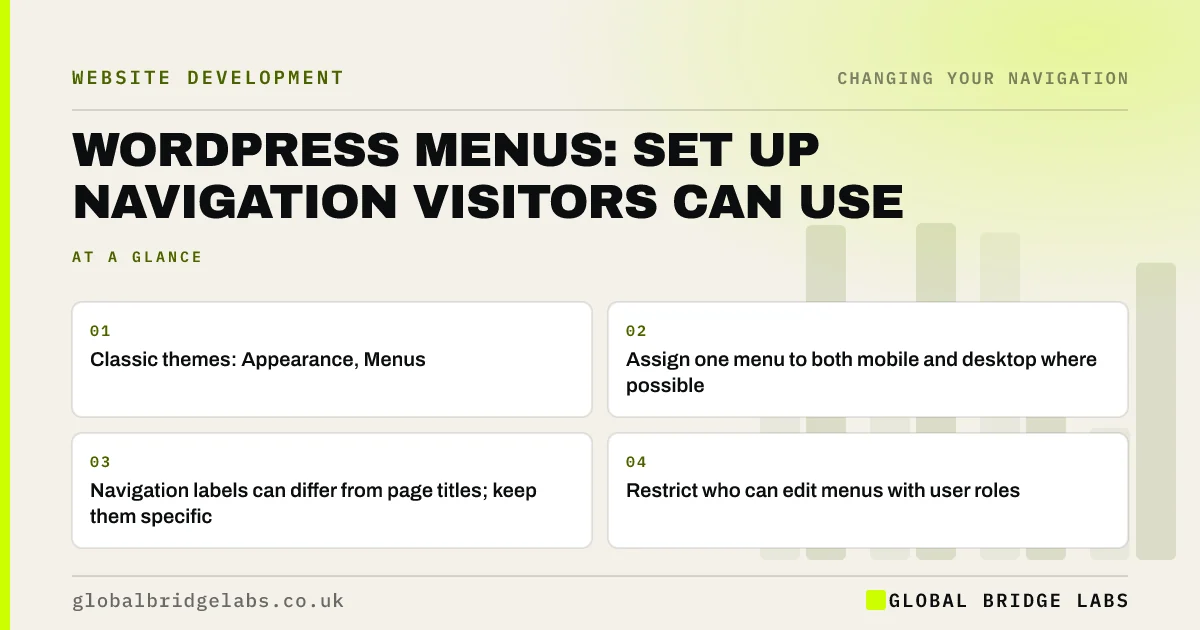
In WordPress, menus are edited under Appearance, Menus in classic themes, or with the Navigation block in the Site Editor in block themes. Use one menu for mobile and desktop where the theme allows, keep labels short and specific, use custom links sparingly and limit dropdowns to one level. Test the result on a phone, not only in the editor.
- Classic themes: Appearance, Menus. Block themes: Site Editor, Navigation.
- Assign one menu to both mobile and desktop where possible.
- Navigation labels can differ from page titles; keep them specific.
- Restrict who can edit menus with user roles.
Want your WordPress menus set up and tested? Message us on WhatsApp.
Chat on WhatsApp →Where do WordPress menus live?
It depends on the theme. Classic themes use the Menus screen under Appearance, where you build menus and assign them to theme locations such as primary, mobile and footer. Block themes use the Navigation block, edited in the Site Editor. Some page builders add their own header menus, which can bypass both.
How should you structure the menu?
Build the main menu with about five to seven items and one level of sub-items. In WordPress, sub-items are created by indenting them under a parent. Use the navigation label field to give a page a short menu label without changing its title. Keep policies, careers and news in a separate footer menu.
- Five to seven top-level items.
- One level of sub-items.
- Short navigation labels in customer words.
- A separate footer menu.
- The contact action styled as a button through the theme or a CSS class.
Why do mobile menus drift in WordPress?
Many themes have a separate mobile menu location, and page builders often add a separate mobile header. If different menus are assigned, one gets updated and the other does not. Assign the same menu to both locations, or check both whenever you change one.
Want your desktop and mobile menus merged into one? Message us on WhatsApp and we will discuss your requirements.
Chat on WhatsApp →What are the common WordPress menu mistakes?
The common mistakes are adding every new page automatically, using custom links with hard-coded URLs that break when pages move, nesting three levels deep, using menu plugins that render links only with JavaScript, and letting every editor change the menu.
- Turn off 'automatically add new top-level pages'.
- Prefer page links to custom URLs.
- Avoid more than one level of nesting.
- Check menu plugins output real HTML links.
- Limit menu editing by user role.
What does this look like in practice?
A pattern we see: a WordPress site has 'automatically add new pages' switched on, so every landing page and thank-you page has joined the menu over the years. Switching it off and rebuilding a six-item menu, assigned to both desktop and mobile, cleans it up in an afternoon.
WordPress menu checklist
- Know whether you use the Menus screen or Navigation block.
- One main menu, five to seven items.
- Same menu for mobile and desktop.
- Auto-add pages switched off.
- Separate footer menu.
- Test on a phone.
Next step
Check which menu is assigned to each location in your theme, and whether mobile has its own.
Message us on WhatsApp for a WordPress navigation review, or book a 30-minute consultation.
Chat on WhatsApp →Sources and further reading
- Menus tutorial · W3C Web Accessibility Initiative
- SEO link best practices for Google · Google Search Central
- Theme Handbook · WordPress.org
Frequently asked questions
How do I edit the menu in WordPress?
In classic themes, go to Appearance, Menus, edit the menu and assign it to a location. In block themes, open the Site Editor and edit the Navigation block in the header. If you use a page builder, the header may have its own menu settings.
Why is my WordPress mobile menu different from desktop?
Your theme or page builder probably uses a separate menu location or header for mobile. Assign the same menu to both, or update both whenever you change one.
Can I change a menu label without changing the page title?
Yes. In the Menus screen, each item has a navigation label that can differ from the page title. In the Navigation block, you can edit the link text directly. Keep the label consistent with the page heading.
Written by

Global Bridge Labs (GBL) is a UK–Sri Lanka partner for social media, websites and BPO. Everything here comes from client delivery, not theory.