On this page
Key takeaways
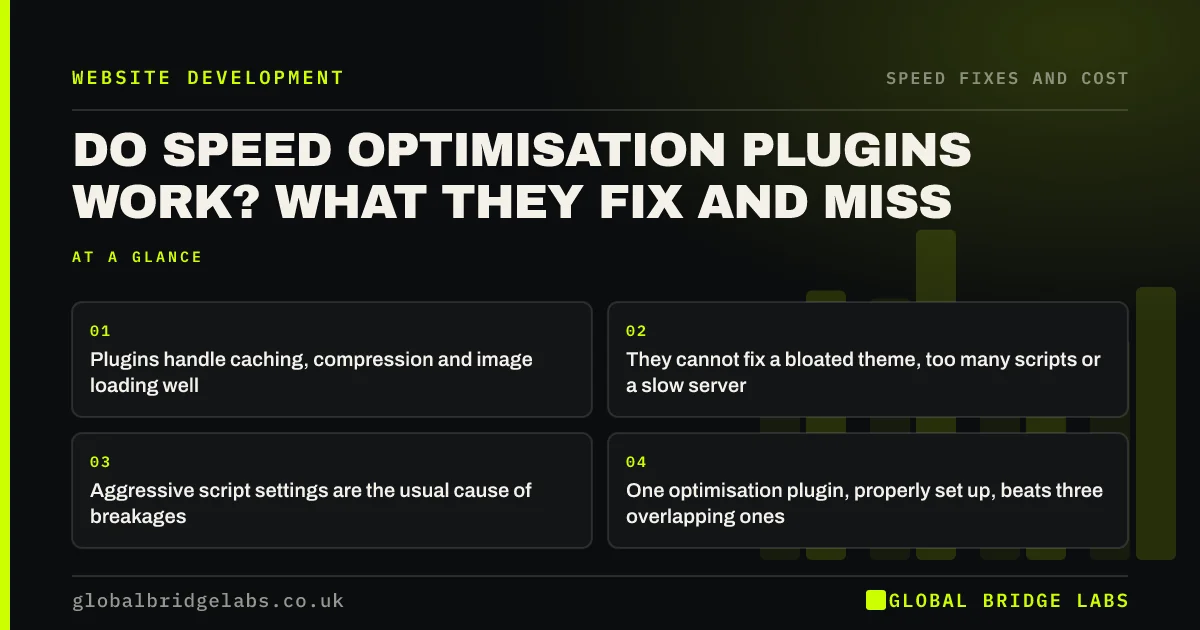
Speed optimisation plugins work, within limits. A well-configured one can add page caching, compress files and manage image loading, which together make a real difference on most WordPress sites. They cannot make a heavy theme light, remove scripts you chose to add or fix slow hosting. Their aggressive settings can also break menus, forms and checkouts. Install one, configure it deliberately and test everything afterwards.
- Plugins handle caching, compression and image loading well.
- They cannot fix a bloated theme, too many scripts or a slow server.
- Aggressive script settings are the usual cause of breakages.
- One optimisation plugin, properly set up, beats three overlapping ones.
Installed a speed plugin and not sure it helped? Send us the URL on WhatsApp.
Chat on WhatsApp →What do speed plugins actually do?
Speed plugins automate a set of standard techniques that would otherwise need a developer.
- Page caching: storing finished pages so the server need not rebuild them.
- Browser caching: telling devices to keep files for later.
- Compression and minification: making files smaller.
- Image handling: lazy loading and, in some, conversion to modern formats.
- Script control: delaying or deferring scripts so the page appears first.
What can they fix?
They fix problems of delivery. If the site is slow because nothing is cached, files are sent uncompressed and every image loads at once, a plugin will bring a clear improvement, often the largest available for the least effort.
They are most effective on sites with sound foundations: a reasonable theme, a moderate number of plugins and decent hosting.
What can they not fix?
They cannot fix problems of substance. A plugin works with what the site sends. It cannot change what the site is.
- A theme or page builder that ships far more code than the page needs.
- A dozen third-party scripts that each do their own work on the phone.
- Images uploaded at five times the size they are displayed.
- A server that is slow or overloaded.
- Pages that cannot be cached, such as baskets and account areas.
- Third-party scripts: the hidden reason your site is slow
- Is your page builder slowing your website down?
- Time to first byte: is your server the slow part?
Want to know whether a plugin is enough for your site? Ask us on WhatsApp.
Chat on WhatsApp →How do speed plugins break websites?
Speed plugins break websites when settings that reorder or delay scripts are switched on without testing. Scripts often depend on each other. Delay one and a menu stops opening, a slider goes blank, a form will not submit or a payment button fails. Combining files can have the same effect.
Caching causes a different fault: visitors see old content, or a logged-in page is stored and shown to someone else. Running two optimisation plugins together multiplies all of these.
How do you use one safely?
Treat a speed plugin as a configuration job, not an install.
- 1. Take a backup and, ideally, work on a staging copy.
- 2. Record a speed baseline for three key pages.
- 3. Use one optimisation plugin and remove others that overlap.
- 4. Turn on caching and compression first, and test.
- 5. Add script and image settings one at a time, testing after each.
- 6. Check menus, forms, search, basket and checkout on a phone.
- 7. Exclude the first-screen image from lazy loading.
What does this look like in practice?
A pattern we see after a do-it-yourself speed attempt: two caching plugins and an image plugin are all active, each with every option ticked. The lab score has risen. The mobile menu opens on the second tap and the contact form has silently stopped sending.
Keeping one plugin, enabling settings in stages and testing the enquiry route after each gives most of the gain with none of the breakage. Global Bridge Labs (GBL) always sends a test enquiry after changing any speed setting.
Speed plugin checklist
- Back up before installing.
- Run one optimisation plugin, not several.
- Enable settings in stages.
- Test forms, menus and checkout after each change.
- Exclude personal pages from caching.
- Compare results with the baseline on mobile.
Next step
A speed plugin is a useful tool in careful hands. If yours was installed and forgotten, or you are wary of the settings, we can configure and test it for you.
Message us on WhatsApp for a speed plugin setup and test.
Chat on WhatsApp →Sources and further reading
- Advanced administration handbook: optimisation · WordPress.org
- Prevent unnecessary network requests with the HTTP cache · web.dev (Google)
- Browser-level image lazy loading for the web · web.dev (Google)
Frequently asked questions
Do speed optimisation plugins really work?
Yes, for what they are designed to do. Caching, compression and image loading settings can noticeably speed up a WordPress site. They do not fix a heavy theme, too many third-party scripts, oversized image uploads or slow hosting.
Can a speed plugin break my website?
It can. Settings that delay, defer or combine scripts may stop menus, sliders, forms or checkout buttons working, and caching can show out-of-date or wrongly personalised pages. Enable settings one at a time and test the site after each.
Should I use more than one speed plugin?
No. Two plugins doing the same job conflict, and faults become hard to trace. Choose one that covers caching and optimisation, configure it properly and remove the others. An image compression plugin alongside is fine if the features do not overlap.
Is a speed plugin enough to pass Core Web Vitals?
Sometimes. On a site with a reasonable theme and few scripts, it can be. Where the theme, page builder or third-party scripts are the cause, a plugin will help loading but will not fix slow responses to taps or layout shift.
Written by

Global Bridge Labs (GBL) is a UK–Sri Lanka partner for social media, websites and BPO. Everything here comes from client delivery, not theory.