On this page
Key takeaways
SaaS website navigation should help prospects understand what the product does, see whether it fits their situation, check the price and start a trial or book a demo, while existing users sign in quickly. Use Product and Solutions routes, put Pricing in the main menu, keep Sign in separate at the top right and make one action, trial or demo, the header button.
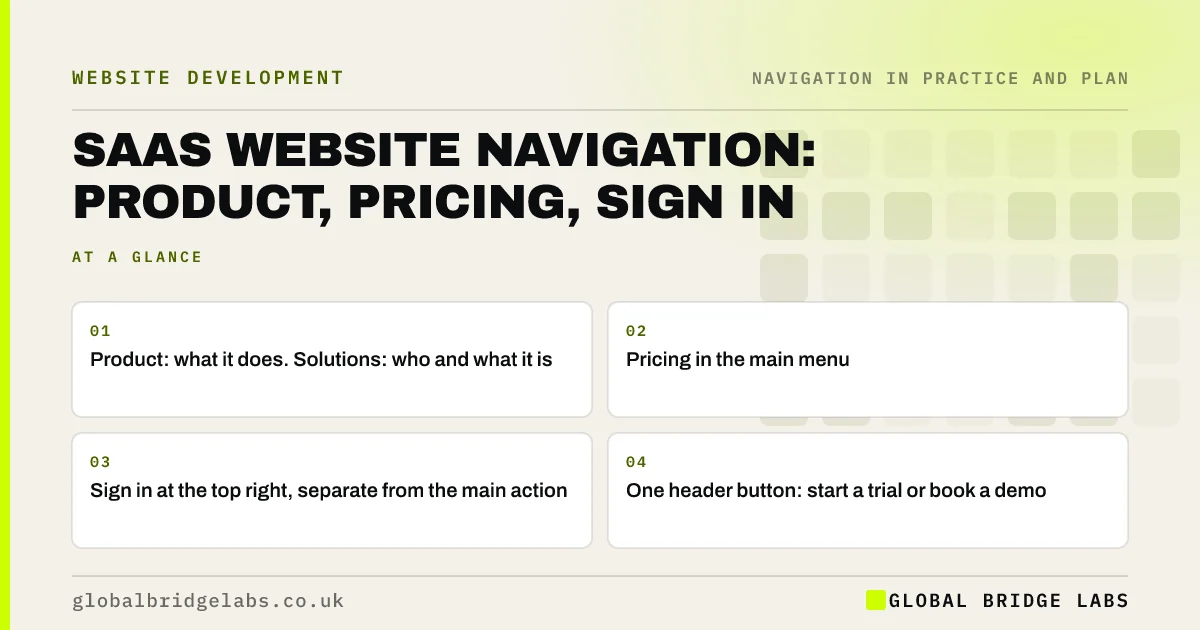
- Product: what it does. Solutions: who and what it is for.
- Pricing in the main menu.
- Sign in at the top right, separate from the main action.
- One header button: start a trial or book a demo.
Want your software website's navigation reviewed? Message us on WhatsApp.
Chat on WhatsApp →Who uses a SaaS website?
Prospects compare features, fit and price, often as part of a buying group with different questions. Existing users want to sign in, find help or upgrade. Navigation must let both act without getting in each other's way: prospects should not land in the app, and users should not wade through marketing to sign in.
What should the menu include?
Most SaaS sites converge on a similar structure because buyers expect it.
- Product: features, integrations, security.
- Solutions: by use case, team or industry.
- Pricing.
- Resources: guides, case studies, help centre.
- Sign in, at the top right.
- Start free trial or Book a demo, as a button.
Want your product and solutions menus planned? Message us on WhatsApp and we will discuss your requirements.
Chat on WhatsApp →Why should pricing be in the menu?
Pricing is one of the most visited pages on most software sites, because buyers use it to qualify themselves. Hiding it behind 'Contact sales' sends many to competitors. Even enterprise products can show plan structure and starting points, with 'Contact us' for custom terms.
How should sign in and the main action be separated?
Put Sign in as a quiet text link at the top right and the trial or demo as a filled button beside it. Users then find sign in instantly and prospects see one clear action. Avoid two equal buttons, which make both groups hesitate.
What does this look like in practice?
A pattern we see: a SaaS site's menu has Platform, Solutions, Customers, Resources and Company, pricing sits in the footer, and Sign in and Get started are identical buttons. Adding Pricing to the menu and styling Sign in as a text link gives prospects and users each their own clear route.
SaaS navigation checklist
- Product and Solutions routes.
- Pricing in the main menu.
- Sign in as a text link, top right.
- One filled trial or demo button.
- Help centre linked for users.
- Same header on marketing and docs pages.
Next step
Check how many clicks it takes to reach your pricing page from a blog post.
Message us on WhatsApp for a SaaS website review, or book a 30-minute consultation.
Chat on WhatsApp →Sources and further reading
- Utility navigation: what it is and how to design it · Nielsen Norman Group
- Mega menus work well for site navigation · Nielsen Norman Group
- Menu-design checklist: 17 UX guidelines · Nielsen Norman Group
Frequently asked questions
What should a SaaS website menu include?
Product, Solutions by use case or industry, Pricing, Resources, a Sign in link and one main action such as Start free trial or Book a demo. Keep company pages such as careers and press in secondary positions.
Should SaaS companies show pricing?
Most should show at least plan structure and starting prices, because buyers use pricing to qualify themselves. Enterprise tiers can say 'Contact us' while still showing what each plan includes.
Where should Sign in go on a SaaS website?
At the top right of the header as a text link, next to the main action button but styled differently, so existing users find it instantly and prospects see one clear action.
Written by

Global Bridge Labs (GBL) is a UK–Sri Lanka partner for social media, websites and BPO. Everything here comes from client delivery, not theory.