
On this page
- 01Key takeaways
- 02Why are nested menus hard on phones?
- 03What is the clearest pattern?
- 04What about slide-in panels?
- 05How do you make nested mobile menus accessible?
- 06When should you flatten instead?
- 07What does this look like in practice?
- 08Nested mobile menu checklist
- 09Next step
- 10Sources and further reading
- 11Frequently asked questions
Key takeaways
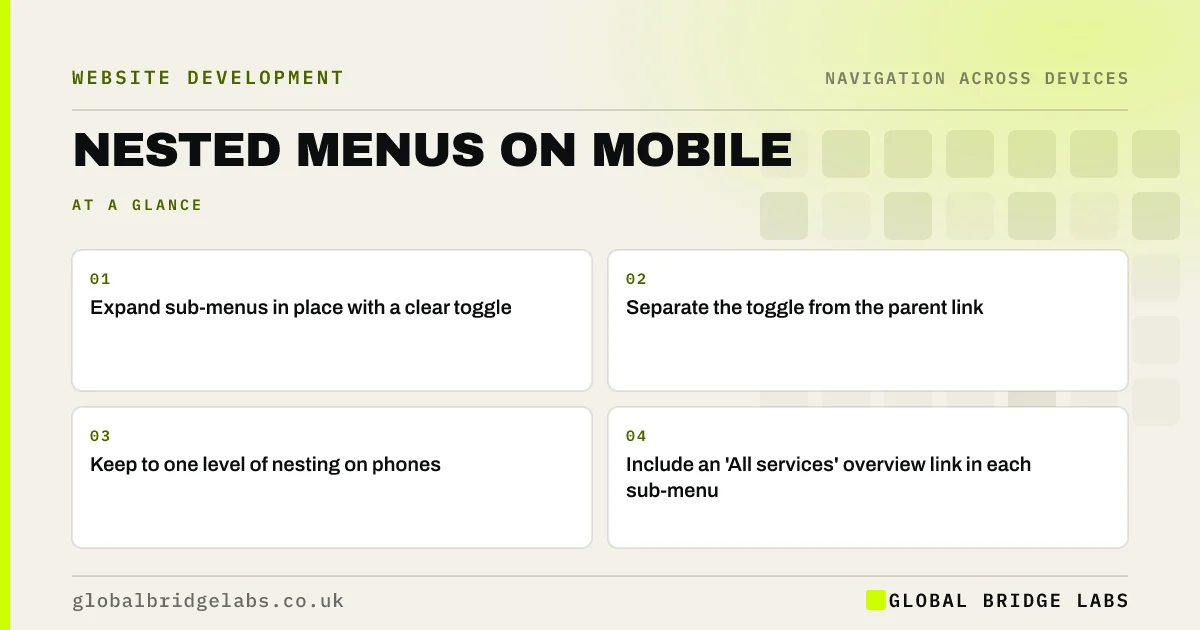
On phones, sub-menus should expand in place, with a clear toggle such as a plus or chevron that is separate from the parent link, and a link to the section overview inside. Keep to one level of nesting. Avoid menus that slide to a new panel without a clear way back, and keep the main action visible throughout.
- Expand sub-menus in place with a clear toggle.
- Separate the toggle from the parent link.
- Keep to one level of nesting on phones.
- Include an 'All services' overview link in each sub-menu.
Want your mobile menu simplified and tested? Message us on WhatsApp.
Chat on WhatsApp →Why are nested menus hard on phones?
On a small screen, each level of nesting pushes other items out of view and adds a tap. Visitors lose track of where they are, especially when panels slide sideways. Tapping a parent item can either open the sub-menu or navigate, and if visitors cannot predict which, they hesitate.
What is the clearest pattern?
The clearest pattern for most business sites is an accordion: parent items listed vertically, each with a toggle that expands its children in place below it. Visitors stay in one list, can see the other sections and can collapse what they do not need.
- Parent label as a link to the section overview, or as a toggle.
- A separate plus, chevron or arrow button to expand.
- Children indented below the parent.
- The toggle changes to show open or closed.
- Only one level of children.
What about slide-in panels?
Panels that slide in for each level can work in large shops, but they hide the rest of the menu and need a clear 'Back' control at the top of each panel, labelled with the parent's name. For small sites with a few services, an accordion is simpler.
Want the right mobile menu pattern chosen for your site? Message us on WhatsApp and we will discuss your requirements.
Chat on WhatsApp →How do you make nested mobile menus accessible?
Toggles should be real buttons with names such as 'Show services', announce whether they are expanded and work with keyboard and screen readers. Targets need to be large enough; WCAG 2.2 sets a minimum of 24 by 24 CSS pixels. The W3C's menus tutorial shows the patterns.
When should you flatten instead?
If the menu has only a handful of sub-items, list them directly with no nesting. Nesting helps when it saves a long scroll, not when it hides three links behind a tap.
What does this look like in practice?
A pattern we see: on a phone, tapping 'Services' navigates to a services page instead of opening the sub-menu, so visitors never see the list. Adding a separate chevron toggle, and an 'All services' link inside the expanded list, lets them choose either.
Nested mobile menu checklist
- Accordion pattern for small sites.
- Separate toggle from parent link.
- One level of nesting.
- Overview link in each sub-menu.
- Toggles announce open and closed.
- Main action visible outside the menu.
Next step
Open your mobile menu and tap each parent item. Does it open or navigate? Can you predict which?
Message us on WhatsApp for a mobile menu review, or book a 30-minute consultation.
Chat on WhatsApp →Sources and further reading
- Menus tutorial · W3C Web Accessibility Initiative
- Understanding SC 2.5.8: Target Size (Minimum) · W3C Web Accessibility Initiative
- Menu-design checklist: 17 UX guidelines · Nielsen Norman Group
Frequently asked questions
How should sub-menus work on mobile?
Expand them in place below the parent item using a clear toggle button, keep them to one level and include a link to the section overview. Visitors should always be able to see where they are and collapse what they do not need.
Should the parent item in a mobile menu be a link?
It can be, if there is a separate toggle to open the sub-menu. Otherwise, make the parent a toggle and put the overview link inside the sub-menu, so visitors are not taken away when they meant to expand it.
How many levels should a mobile menu have?
One level of sub-menu is usually enough. Two or more levels on a phone quickly become disorienting. If you need more, consider a section page with its own navigation instead.
Written by

Global Bridge Labs (GBL) is a UK–Sri Lanka partner for social media, websites and BPO. Everything here comes from client delivery, not theory.