On this page
Key takeaways
Older hand-coded sites often use addresses ending in .html or .htm, sometimes in folders that mirror how files were saved. Moving to a CMS usually changes these URLs. List every file, keep the page names as slugs, redirect each .html address to its new URL, often with one tested pattern rule, and carry the content across carefully.
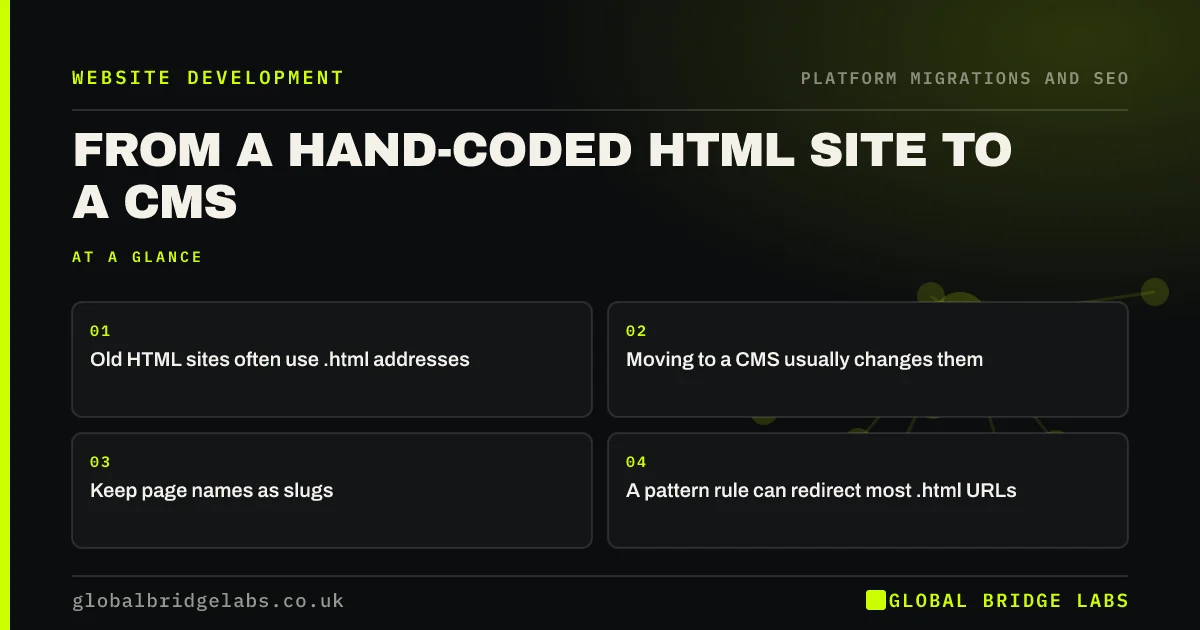
- Old HTML sites often use .html addresses.
- Moving to a CMS usually changes them.
- Keep page names as slugs.
- A pattern rule can redirect most .html URLs.
Still on a hand-coded site? Message us on WhatsApp about moving it.
Chat on WhatsApp →Why do HTML site moves need care?
Hand-coded sites have often been online for many years, with links from directories, partners and old press coverage pointing at specific .html files. They may also contain pages nobody remembers, because there is no admin panel listing them. Missing those files in the migration breaks long-standing links that have built up trust over time.
What are the steps?
Start with the server files, not just the crawl, because files can exist without being linked.
- List every HTML file on the server and every crawled URL.
- Add URLs from Search Console and backlink reports.
- Keep each page name as the new slug.
- Write a pattern redirect from .html to the new URLs.
- Add one-to-one redirects for pages that change name.
- Copy content, titles and descriptions into the CMS.
What should you watch for?
Watch for index.html files, which often represent folder home pages and need redirecting to the folder or its new equivalent. Check for both .html and .htm versions. Look for pages with uppercase letters in file names, which some servers treat differently. And move images and PDFs that pages link to, because those often sit in folders the CMS does not use.
- Trailing slashes, capitals and duplicate URL versions
- Redirecting images, PDFs and files, not just pages
Want us to check your old file list? Message us on WhatsApp.
Chat on WhatsApp →What does this look like in practice?
A pattern we see: a firm's old HTML site has a page about a niche service that has ranked for years and has links from two trade associations. It is not in the menu, so the crawl misses it. Listing the server files finds it, and a redirect to the new service page keeps the links and the ranking.
HTML to CMS checklist
- List server files and crawled URLs.
- Keep page names as slugs.
- Write and test a .html pattern redirect.
- Handle index.html and .htm versions.
- Move linked images and PDFs.
Next step
Ask whoever hosts your current site for a list of every file on the server. Compare it with a crawl; any page not in the crawl still needs a redirect.
Message us on WhatsApp about moving from HTML, or book a 30-minute consultation.
Chat on WhatsApp →Sources and further reading
- Site moves with URL changes · Google Search Central
- Apache HTTPD and .htaccess · WordPress Developer Resources
- Redirects and Google Search · Google Search Central
Frequently asked questions
How do I redirect .html pages to a new website?
If page names stay the same, one pattern rule can redirect every .html address to its new URL without the extension. Add one-to-one redirects for pages that change name, and handle index.html files separately. Test the rule against every old URL before launch.
Can I keep .html in my URLs on a CMS?
Some CMS platforms can be configured to keep .html endings, which avoids redirects. Others cannot. If your new platform supports it and your URLs rank well, keeping them is an option, but clean URLs without extensions are usually simpler for the long term.
Will I lose rankings moving from an old HTML site?
Not if every old page is redirected to its new equivalent and the content comes across. Old HTML sites often have long-standing links, so a thorough file list matters. A short dip is normal; lasting losses usually come from forgotten pages.
Written by

Global Bridge Labs (GBL) is a UK–Sri Lanka partner for social media, websites and BPO. Everything here comes from client delivery, not theory.