On this page
Key takeaways
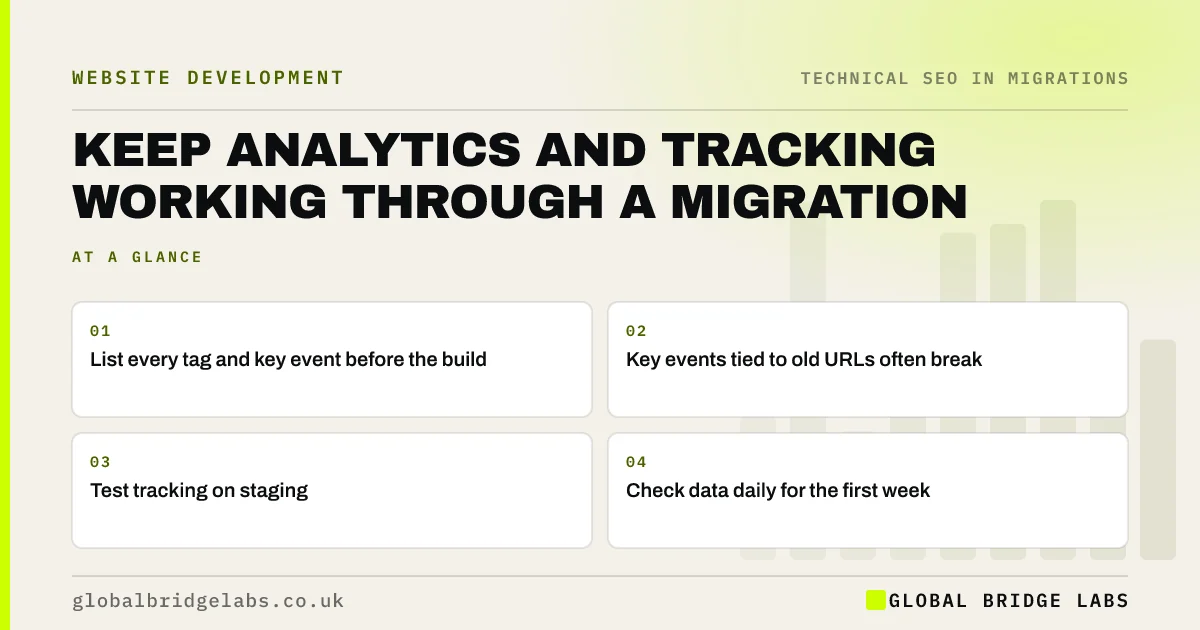
Analytics often breaks in a migration: tags not added to new templates, key events tied to old URLs or button names, or a new domain not set up. Without working tracking, you cannot tell whether the migration succeeded. List every tag and key event before the build, add them to the new site, test them on staging and check data daily for the first week.
- List every tag and key event before the build.
- Key events tied to old URLs often break.
- Test tracking on staging.
- Check data daily for the first week.
Want us to check your tracking before launch? Message us on WhatsApp.
Chat on WhatsApp →What tracking is at risk?
Most small business sites run more tracking than anyone remembers. List it all before the build.
- Analytics tags, such as GA4, on every page.
- Key events: forms, calls, bookings, purchases.
- Tag manager containers and their triggers.
- Advertising and call tracking tags.
- Search Console verification.
Why do key events break?
Key events are often set up to fire on a thank-you page URL, a button's text or a form's ID. A migration changes all three. If the thank-you page moves or a form plugin changes, the key event stops firing even though the analytics tag still loads, and enquiries appear to fall to zero. Rebuild each key event against the new site's pages and elements.
How do you test and compare?
On staging, use the tag manager's preview mode and analytics real-time reports to submit test forms, click phone links and complete test purchases. On launch day, repeat the tests on the live site. For comparison, annotate the launch date in your reports and compare enquiries and key events with the baseline, matching old and new landing pages through the redirect map.
Want a second check of your key events? Message us on WhatsApp.
Chat on WhatsApp →What does this look like in practice?
A pattern we see: after launch, analytics shows enquiries falling to almost nothing, and the owner fears the migration failed. In fact the enquiry key event was tied to the old thank-you page URL. Rebuilding it against the new page shows enquiries were steady all along, but two weeks of data are missing.
Analytics migration checklist
- List every tag and key event.
- Rebuild key events for new pages and forms.
- Test on staging with preview mode.
- Retest on the live site at launch.
- Annotate the launch date in reports.
Next step
Open your analytics and tag manager and write down every key event and how it is triggered. Each one needs checking against the new site before launch.
Message us on WhatsApp about tracking, or book a 30-minute consultation.
Chat on WhatsApp →Sources and further reading
- About key events · Google Analytics Help
- Tag Manager overview · Tag Manager Help
- Google Search Console · Google
Frequently asked questions
Will I lose analytics data when I migrate my website?
Your historical data stays in the analytics property, as long as you keep using it. The risk is gaps after launch, when tags or key events are missing on the new site. Add tags to every template, rebuild key events and test them before and after launch.
Do I need a new GA4 property for a new domain?
Usually not. You can keep the same property and update the data stream's settings, which keeps history in one place. Check cross-domain settings if both domains run for a while. Add the new domain to Search Console and link it to analytics.
How do I test tracking on a new website?
Use the tag manager's preview mode and analytics real-time or debug reports while you submit test forms, click phone and WhatsApp links and make test purchases. Check each key event fires once. Repeat the tests on the live site on launch day.
Written by

Global Bridge Labs (GBL) is a UK–Sri Lanka partner for social media, websites and BPO. Everything here comes from client delivery, not theory.