On this page
Key takeaways
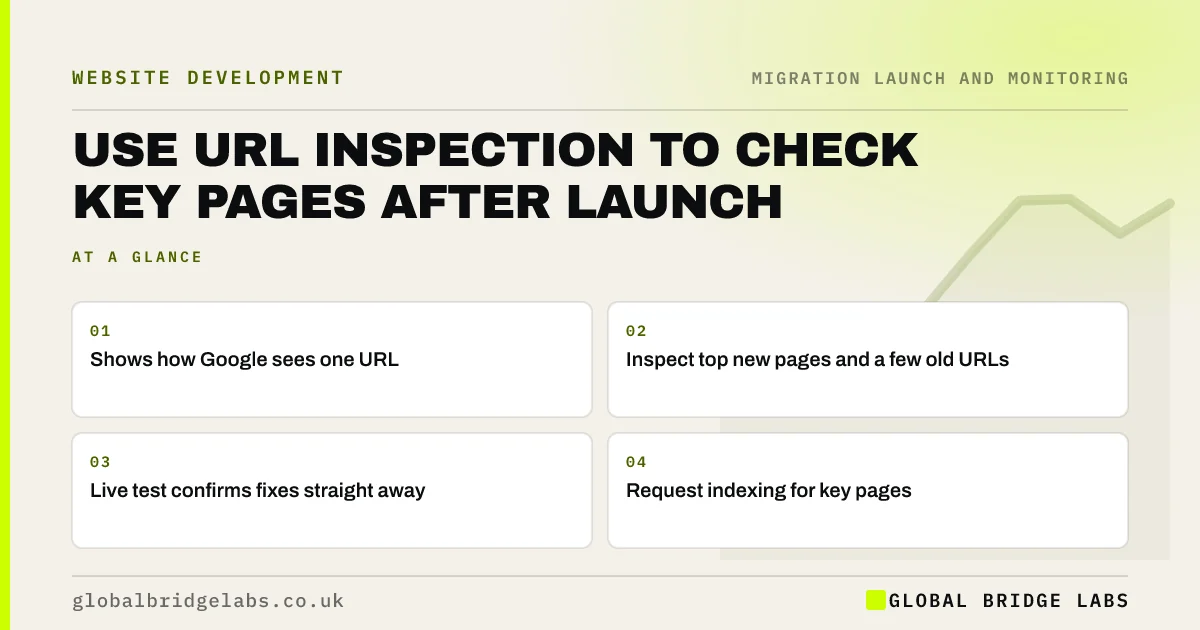
The URL Inspection tool in Search Console shows how Google sees a single URL: whether it is indexed, which canonical Google chose, whether crawling is allowed and how the page renders. After a migration, inspect your top new pages and a few old URLs. Use the live test to confirm fixes, and request indexing for key pages to speed things along.
- Shows how Google sees one URL.
- Inspect top new pages and a few old URLs.
- Live test confirms fixes straight away.
- Request indexing for key pages.
Want help reading URL Inspection results? Message us on WhatsApp.
Chat on WhatsApp →What does URL Inspection show?
Google's help page describes two views. The indexed view shows what Google last stored: index status, last crawl, the canonical you declared and the canonical Google selected, and any structured data found. The live test fetches the page now, showing whether it can be indexed, the rendered HTML and a screenshot. Together they tell you whether a fix has worked and whether Google has caught up.
What should you inspect after launch?
Focus on a short list, because inspection is one URL at a time.
- Your homepage and top ten new pages.
- A few old URLs, to confirm the redirect is seen.
- One page of each template, such as product or post.
- Any page that has lost clicks since launch.
- Pages you have just fixed.
When should you request indexing?
Request indexing for your homepage and most important new pages on launch day, and for any page after you fix a problem such as a noindex tag. There is a daily limit, so do not use it for every URL; the sitemap handles the rest. Requesting indexing does not guarantee immediate indexing, but it puts the page in Google's queue sooner.
- The first hour after a migration: checks in order
- Noindex left on after launch: how to check and fix
- XML sitemaps in a migration: old, new or both?
Want a second opinion on a page Google will not index? Message us on WhatsApp.
Chat on WhatsApp →What does this look like in practice?
A pattern we see: a key service page loses clicks after launch. URL Inspection shows Google has selected the old URL as canonical because the new page's canonical tag still points to it. Fixing the tag, running a live test and requesting indexing lets the new URL take over within days.
URL Inspection checklist
- Inspect the homepage and top pages.
- Check a few old URLs see their redirect.
- Compare declared and selected canonicals.
- Live test after each fix.
- Request indexing for key pages only.
Next step
On launch day, inspect your homepage and top five pages and request indexing for each. Repeat the inspection a week later to confirm they are indexed at the new URLs.
Message us on WhatsApp about URL Inspection, or book a 30-minute consultation.
Chat on WhatsApp →Sources and further reading
- URL Inspection tool · Search Console Help
- How to specify a canonical URL with rel="canonical" and other methods · Google Search Central
- Redirects and Google Search · Google Search Central
Frequently asked questions
What is the URL Inspection tool?
It is a tool in Google Search Console that shows how Google sees a single URL: whether it is indexed, when it was last crawled, which canonical Google chose, any structured data, and, with the live test, whether the page can be indexed now and how it renders.
Does requesting indexing speed up a migration?
It can help Google crawl your most important pages sooner, but it is limited to a small number of URLs each day and does not guarantee indexing. Use it for the homepage, top pages and pages you have fixed. The sitemap and redirects handle the rest of the site.
Can URL Inspection check a redirect?
Yes. Inspect an old URL and Google will show it as a page with redirect if it has crawled the redirect, or the live test will show the redirect now. It helps confirm that Google sees your redirects and where they lead.
Written by

Global Bridge Labs (GBL) is a UK–Sri Lanka partner for social media, websites and BPO. Everything here comes from client delivery, not theory.