On this page
- 01Key takeaways
- 02Why does homepage accessibility affect conversion?
- 03What are the most common homepage problems?
- 04How do you check your homepage quickly?
- 05Do accessibility overlays fix the problem?
- 06When is accessibility work bigger than a quick fix?
- 07What does this look like in practice?
- 08Homepage accessibility checklist
- 09Next step
- 10Sources and further reading
- 11Frequently asked questions
Key takeaways
Homepage accessibility problems lose customers who are older, use assistive technology, browse in bright light or simply have small phones. The most common are low-contrast text, small tap targets, unlabelled form fields, menus that do not work with a keyboard and key words inside images. Most can be fixed without a redesign, and they help every visitor.
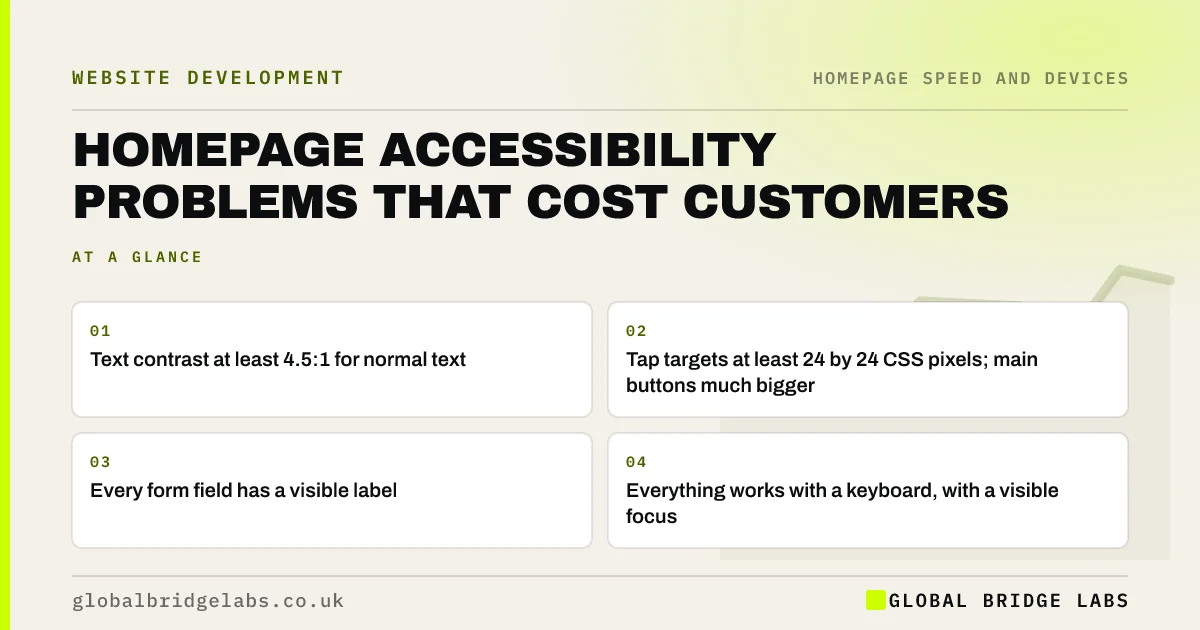
- Text contrast at least 4.5:1 for normal text.
- Tap targets at least 24 by 24 CSS pixels; main buttons much bigger.
- Every form field has a visible label.
- Everything works with a keyboard, with a visible focus.
Want a quick accessibility check of your homepage? Message us on WhatsApp.
Chat on WhatsApp →Why does homepage accessibility affect conversion?
Accessibility affects conversion because barriers stop real buyers from reading the message, pressing the button or completing the form. That includes disabled people, older visitors, people on small or cracked phones and anyone in bright sunlight. Under the Equality Act 2010, service providers must also make reasonable adjustments, which can include websites.
What are the most common homepage problems?
These five appear on most small business homepages we review.
- Low contrast: grey text or text over busy images below 4.5:1.
- Small targets: links and buttons too small or too close to tap.
- Unlabelled forms: placeholder text instead of labels.
- Keyboard traps: menus and sliders that cannot be used without a mouse.
- Images of text: key words in the hero image, unreadable by screen readers.
How do you check your homepage quickly?
Use the W3C's Easy Checks: zoom the page to 200%, tab through it with the keyboard, check contrast with a free tool and look at alt text. Then try the main action with a screen reader on your phone. Automated tools catch some issues but miss many, so do the manual checks too.
Do accessibility overlays fix the problem?
No. Overlay widgets that promise instant compliance do not fix the underlying code and can make things worse for screen reader users. Fix the contrast, labels, focus and structure directly; it is usually less work than people expect.
When is accessibility work bigger than a quick fix?
It becomes bigger when the theme or page builder produces inaccessible code throughout, such as menus built without proper elements or sliders that trap focus. Then fixing the homepage alone helps, but a template change may be needed for the whole site.
What does this look like in practice?
A pattern we see: light grey body text, a hero headline set inside the image and a form with placeholder-only fields. Fixing contrast, moving the headline into real text and adding labels takes a day or two and makes the page easier for everyone, not only for users with disabilities.
Homepage accessibility checklist
- Check text contrast is at least 4.5:1.
- Make the main button large and easy to tap.
- Give every form field a visible label.
- Tab through the page and check focus is visible.
- Move words out of images into real text.
- Add useful alt text to meaningful images.
- Zoom to 200% and check nothing breaks.
Next step
Tab through your homepage using only the keyboard and try to reach and press the main button. If you get stuck or lose track of where you are, start there.
Message us on WhatsApp for a homepage accessibility check, or book a 30-minute consultation.
Chat on WhatsApp →Sources and further reading
- Web Content Accessibility Guidelines (WCAG) 2.2 · W3C
- Easy checks: a first review of web accessibility · W3C Web Accessibility Initiative
- Equality Act 2010 · legislation.gov.uk
- Understanding SC 1.4.3: Contrast (Minimum) · W3C
- Understanding SC 2.5.8: Target Size (Minimum) · W3C Web Accessibility Initiative
Frequently asked questions
How do I check my homepage for accessibility?
Start with the W3C Easy Checks: check text contrast, tab through the page with a keyboard, zoom to 200%, look at form labels and alt text, and try the main action with a screen reader. Automated tools help but do not catch everything.
Is website accessibility a legal requirement in the UK?
Public sector bodies have specific website accessibility regulations. Private businesses that provide services to the public have duties under the Equality Act 2010, including making reasonable adjustments, which can apply to websites. Following WCAG 2.2 is the practical standard.
Do accessibility widgets make my site compliant?
No. Overlay widgets do not fix the underlying code and can interfere with assistive technology. The reliable approach is to fix contrast, labels, keyboard access, focus and structure directly in the site.
Written by

Global Bridge Labs (GBL) is a UK–Sri Lanka partner for social media, websites and BPO. Everything here comes from client delivery, not theory.