On this page
Key takeaways
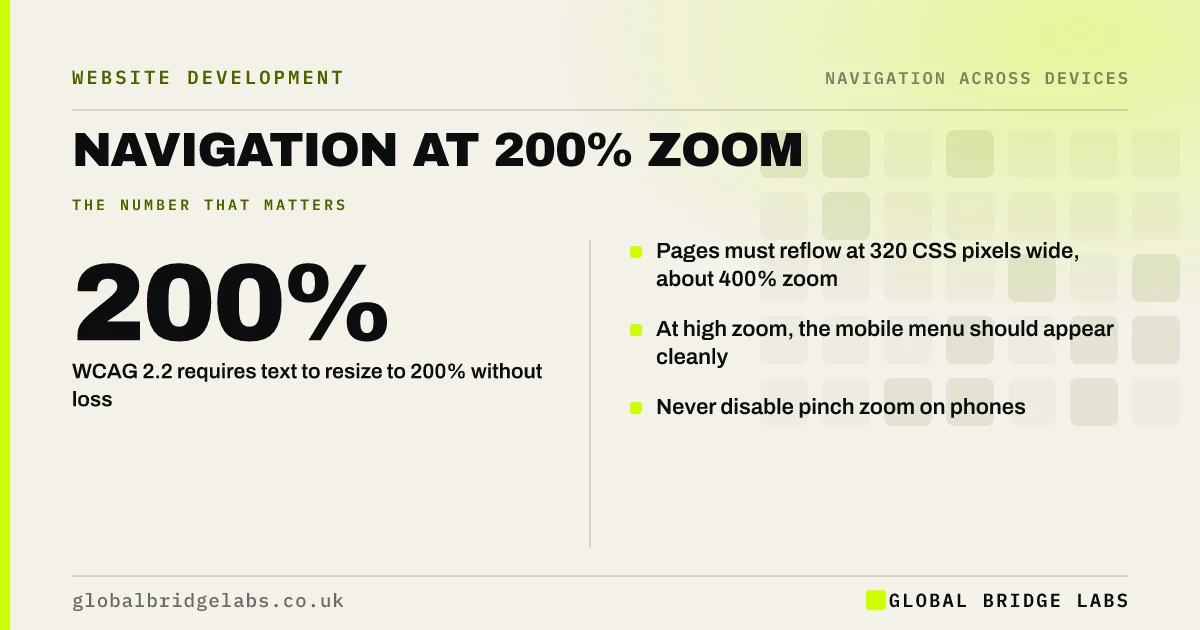
Many visitors zoom in or enlarge text, and menus are often the first thing to break: items overlap, wrap or disappear. WCAG 2.2 requires text to resize to 200% without loss of content and pages to reflow at a 320 CSS pixel width, equivalent to 400% zoom on a typical laptop. At high zoom, the site should switch to the mobile menu cleanly.
- WCAG 2.2 requires text to resize to 200% without loss.
- Pages must reflow at 320 CSS pixels wide, about 400% zoom.
- At high zoom, the mobile menu should appear cleanly.
- Never disable pinch zoom on phones.
Want your menu tested at 200% and 400% zoom? Message us on WhatsApp.
Chat on WhatsApp →Who zooms in on websites?
People with low vision, older visitors and anyone on a small screen in bright light or without their glasses. Some set a larger default text size in their browser or phone; others zoom page by page. They are a meaningful share of visitors, and many do not think of themselves as disabled.
What does WCAG 2.2 require?
Two success criteria cover zoom. 1.4.4, Resize Text, requires text to resize up to 200% without loss of content or function. 1.4.10, Reflow, requires content to work at a width of 320 CSS pixels without scrolling in two directions, which is roughly 400% zoom on a 1,280 pixel wide screen. Both are level AA.
What breaks in menus when visitors zoom?
Menus built with fixed sizes break first. Each of these hides navigation from someone who needs larger text.
- Menu items overlapping or wrapping onto the logo.
- Items cut off at the right edge.
- Dropdowns opening off screen.
- Sticky headers filling half the screen.
- The mobile menu not appearing at high zoom.
- Pinch zoom disabled on phones.
Want zoom problems fixed in your templates? Message us on WhatsApp and we will discuss your requirements.
Chat on WhatsApp →How do you test it?
On a laptop, zoom the browser to 200% and then 400% and use the menu. At 400% the layout should be the mobile one, with no sideways scrolling. Also set the browser's default text size to large. On a phone, pinch-zoom the header and check it is allowed.
What about sticky headers at high zoom?
A sticky header that takes 15% of the screen at normal size can take half of it at 400%. Make sticky headers stop sticking, or shrink, at high zoom or small heights, so content stays readable and focus is not hidden behind them.
What does this look like in practice?
A pattern we see: at 200% zoom, a site's seven menu items overlap the logo and the header action disappears off the right edge. Letting the menu switch to the mobile layout as soon as it stops fitting fixes zoom and narrow screens at once.
Zoom checklist
- Test the menu at 200% and 400% zoom.
- Mobile menu appears when the full menu stops fitting.
- No sideways scrolling at 320 CSS pixels.
- Sticky header shrinks or releases at high zoom.
- Pinch zoom allowed on phones.
Next step
Press Ctrl and plus four times on your homepage and try to use the menu.
Message us on WhatsApp for an accessibility review, or book a 30-minute consultation.
Chat on WhatsApp →Sources and further reading
- Understanding SC 1.4.4: Resize Text · W3C Web Accessibility Initiative
- Understanding SC 1.4.10: Reflow · W3C Web Accessibility Initiative
- Understanding WCAG 2.2 success criterion 2.4.11: Focus Not Obscured (Minimum) · W3C
Frequently asked questions
Why does my website menu break when I zoom in?
Usually because the menu uses fixed widths or only switches to the mobile layout at a set device width. When zoomed, the screen behaves like a narrower one, so the full menu no longer fits. Make the menu collapse whenever it stops fitting.
What zoom level should a website support?
WCAG 2.2 requires text to resize to 200% without loss of content and layouts to reflow at 320 CSS pixels wide, about 400% zoom on a typical laptop. Test at both levels.
Should I disable zoom on mobile?
No. Disabling pinch zoom stops people with low vision from reading your site and can fail accessibility requirements. Let visitors zoom, and design the layout so it holds up when they do.
Written by

Global Bridge Labs (GBL) is a UK–Sri Lanka partner for social media, websites and BPO. Everything here comes from client delivery, not theory.