On this page
- 01Key takeaways
- 02Which statuses does a calendar need?
- 03Who moves a post from one status to the next?
- 04How do statuses fit the monthly deadlines?
- 05How do you keep statuses accurate?
- 06When is a status workflow overkill?
- 07What does this look like in practice?
- 08Status workflow checklist
- 09Next step
- 10Sources and further reading
- 11Frequently asked questions
Key takeaways
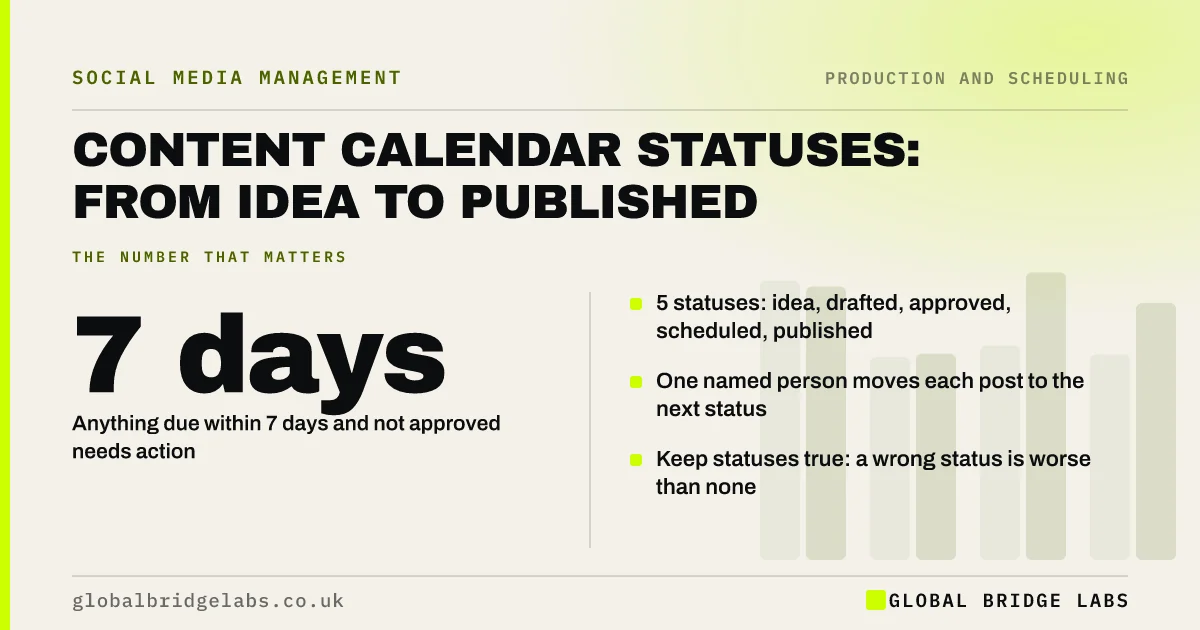
A content calendar status workflow gives every post one of five statuses, idea, drafted, approved, scheduled and published, with a named person responsible for moving it on. A glance at the status column shows what is stuck. If any post due in the next seven days is still at idea or drafted, that is the problem to fix today.
- 5 statuses: idea, drafted, approved, scheduled, published.
- One named person moves each post to the next status.
- Anything due within 7 days and not approved needs action.
- Keep statuses true: a wrong status is worse than none.
Want a status workflow set up in your calendar? Message us on WhatsApp.
Chat on WhatsApp →Which statuses does a calendar need?
Five is enough for most small teams. Idea: the slot has a specific post but nothing is made. Drafted: caption and image or video exist. Approved: signed off. Scheduled: loaded into the platform or tool with a date. Published: live. Add 'on hold' only if posts are often paused for a reason, such as waiting for a client's permission.
Who moves a post from one status to the next?
Name a person for each step: the maker moves posts to drafted, the approver to approved, the calendar owner to scheduled and checks they publish. When a post sits at one status, everyone knows whose turn it is. That is the main value of the workflow: it removes the 'I thought you were doing it' gap.
How do statuses fit the monthly deadlines?
Tie them to the monthly rhythm: every post for next month at drafted by the 23rd, at approved by the 25th and at scheduled by the last working day. In the mid-month check, scan the status column for the next seven days. Anything behind gets moved, simplified or swapped for a reserve post.
How do you keep statuses accurate?
Update the status at the moment the work happens, not at the end of the week, and make it one click with a drop-down list. Check after each publishing day that 'scheduled' posts actually went out, because scheduled posts occasionally fail. A calendar that says 'published' for a post that never went live hides the problem.
When is a status workflow overkill?
For one person who plans, makes and posts, three statuses (to do, scheduled, done) are enough. The full workflow earns its place once two or more people touch a post, or when approvals take time.
What does this look like in practice?
A pattern we see: posts discovered missing on the day they were due, because nobody knew they were never made. Adding five statuses and a weekly glance usually means problems are found a week early, when they are easy to fix.
Status workflow checklist
- Use five statuses with a drop-down list.
- Name who moves posts at each step.
- Tie statuses to the 23rd, 25th and last working day.
- Check scheduled posts actually published.
- Scan the next seven days at mid-month.
Next step
Add a status column with the five statuses to your calendar and set every post for next month to its true status today.
Message us on WhatsApp and we will set up the workflow, or book a 30-minute consultation.
Chat on WhatsApp →Sources and further reading
- Meta Business Help Centre · Meta
- LinkedIn Pages best practices · LinkedIn
Frequently asked questions
What statuses should a content calendar use?
Five works for most small teams: idea, drafted, approved, scheduled and published. Add on hold only if posts are often paused for a reason. One person working alone can use three: to do, scheduled and done.
How do I track the progress of social media posts?
Give every post a status in the calendar and name who moves it at each step. Scan the status column weekly; anything due within seven days that is not yet approved needs attention.
Why do scheduled social media posts sometimes not publish?
Connection problems between a tool and the platform, expired permissions, or content the platform rejects can all stop a post. Check that scheduled posts went live after each publishing day and reconnect accounts when tools ask.
Written by

Global Bridge Labs (GBL) is a UK–Sri Lanka partner for social media, websites and BPO. Everything here comes from client delivery, not theory.