On this page
- 01Key takeaways
- 02What is colour contrast?
- 03What contrast ratio does WCAG require?
- 04Why is low contrast so common?
- 05Where do contrast problems usually hide?
- 06How do you check contrast on your site?
- 07How do you fix contrast without losing your brand?
- 08Is contrast a legal requirement in the UK?
- 09What does this look like in practice?
- 10Contrast checklist
- 11Next step
- 12Sources and further reading
- 13Frequently asked questions
Key takeaways
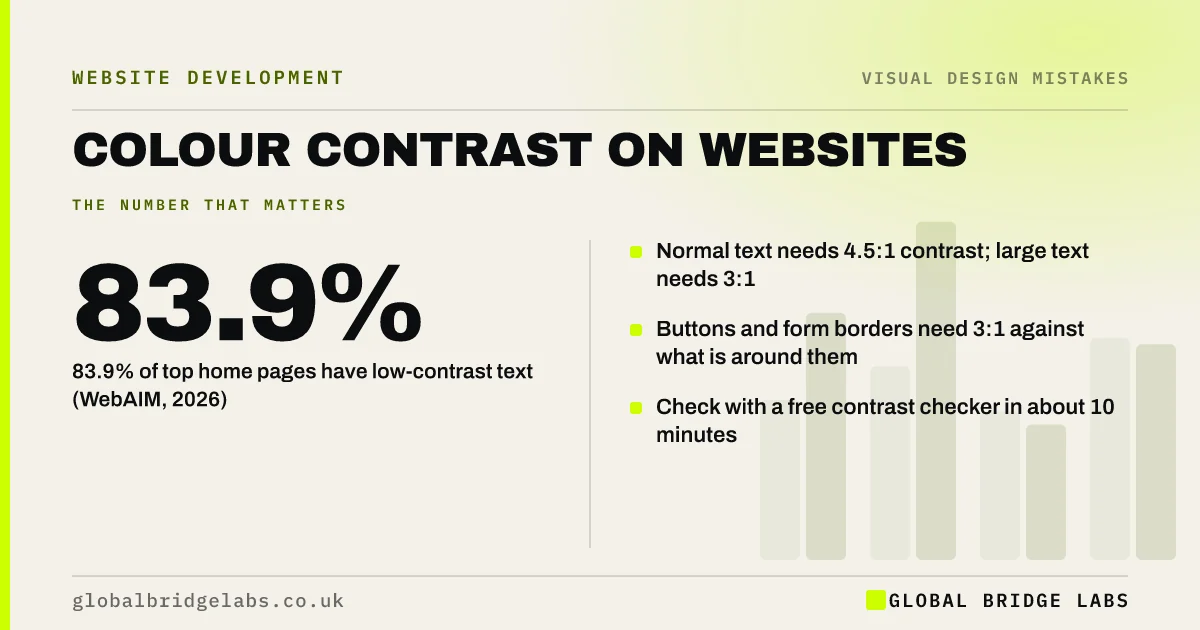
Low colour contrast is the most common accessibility failure on the web: WebAIM found it on 83.9% of the top million home pages in 2026. WCAG requires at least 4.5:1 between normal text and its background and 3:1 for large text. Grey body text, text over photos and pale buttons are the usual culprits, and most are fixed with a darker colour.
- 83.9% of top home pages have low-contrast text (WebAIM, 2026).
- Normal text needs 4.5:1 contrast; large text needs 3:1.
- Buttons and form borders need 3:1 against what is around them.
- Check with a free contrast checker in about 10 minutes.
Want your contrast checked? Message us on WhatsApp.
Chat on WhatsApp →What is colour contrast?
Colour contrast is the difference in brightness between text or a control and the background behind it, expressed as a ratio from 1:1 (no difference) to 21:1 (black on white). The higher the ratio, the easier text is to read, especially for people with low vision, older visitors and anyone on a phone in daylight.
What contrast ratio does WCAG require?
WCAG 2.2 level AA requires a contrast ratio of at least 4.5:1 for normal text and 3:1 for large text, which WCAG defines as at least 18 point, or 14 point bold. User interface components, such as button edges and form field borders, and meaningful graphics need at least 3:1. Logos and purely decorative text are exempt.
Why is low contrast so common?
Low contrast is common because it looks elegant on a designer's bright, high-quality monitor. Light grey text, thin fonts and text laid over photos feel calm and modern in a mock-up. On a mid-range phone in sunlight, or for a visitor in their sixties, the same text is hard work. WebAIM counted an average of 34 low-contrast text instances per home page in 2026.
Where do contrast problems usually hide?
Contrast failures cluster in a few places. Check these first, because one fix in the site's styles often corrects every page at once.
- Grey body text and small grey captions or dates.
- White text on photos, video or gradient backgrounds.
- Placeholder text inside form fields.
- White text on light brand colours such as yellow, orange or mint.
- Footer text and links on dark backgrounds.
- Disabled-looking ghost buttons with thin outlines.
How do you check contrast on your site?
Use a free contrast checker: pick the text colour and background colour and it shows the ratio and whether it passes. Browser developer tools in Chrome and Edge show the ratio when you inspect text. Automated tools such as WAVE flag failures across a page. Check the homepage, a service page and the contact form.
Want a contrast report for your key pages? Message us on WhatsApp and we will discuss your requirements.
Chat on WhatsApp →How do you fix contrast without losing your brand?
Keep the brand colour but change where it is used. Use darker shades of the brand colour for text and buttons, and lighter tints for backgrounds. For text over photos, add a solid or semi-opaque panel behind the text, or move the text beside the image. Change body text from mid-grey to near-black.
Is contrast a legal requirement in the UK?
For private businesses, there is no law that names a contrast ratio, but the Equality Act 2010 requires reasonable adjustments for disabled people, including on websites. Public sector bodies must meet WCAG 2.2 AA. For a business, meeting WCAG contrast is a cheap, clear way to show reasonable steps.
What does this look like in practice?
A pattern we see: a site's body text is a fashionable mid-grey and its buttons are white text on a pale brand colour. Darkening the text and the button shade is a small change in the stylesheet, and it improves every page at once.
Contrast checklist
- Check body text against 4.5:1.
- Check large headings against 3:1.
- Check button and input borders against 3:1.
- Put a panel behind any text over images.
- Check placeholder and footer text.
- Fix colours in the global styles, not page by page.
Next step
Check your body text and main button with a contrast checker today.
Message us on WhatsApp for a contrast fix plan, or book a 30-minute consultation.
Chat on WhatsApp →Sources and further reading
Frequently asked questions
What is a good colour contrast ratio for a website?
At least 4.5:1 for normal body text and 3:1 for large text (18 point, or 14 point bold) to meet WCAG 2.2 AA. Buttons, form borders and meaningful icons need 3:1. Higher is better for readability; near-black text on white is around 15:1 or more.
Is grey text bad for websites?
Light or mid-grey body text often fails WCAG contrast and is tiring to read. Dark grey can pass. Check your exact colours with a contrast checker; if the ratio is below 4.5:1 for body text, darken it.
How do I check colour contrast on my website?
Use a free online contrast checker with the text and background colours, or inspect text in Chrome or Edge developer tools, which show the ratio. Automated tools such as WAVE flag low-contrast text across a whole page.
Written by

Global Bridge Labs (GBL) is a UK–Sri Lanka partner for social media, websites and BPO. Everything here comes from client delivery, not theory.