On this page
- 01Key takeaways
- 02What is a website layout?
- 03Mistake 1: nothing lines up
- 04Mistake 2: no grid
- 05Mistake 3: too many columns
- 06Mistake 4: uneven cards and images
- 07Mistake 5: a confusing order on mobile
- 08Mistake 6: content touching the edges
- 09Mistake 7: a different layout on every page
- 10What does this look like in practice?
- 11Layout checklist
- 12Next step
- 13Sources and further reading
- 14Frequently asked questions
Key takeaways
Website layout mistakes make a page look careless and harder to scan even when the content is good. The usual faults are items that do not line up, no underlying grid, too many columns, unequal cards with ragged edges, and desktop layouts that collapse into a confusing order on mobile. A simple grid and consistent alignment fix most of them.
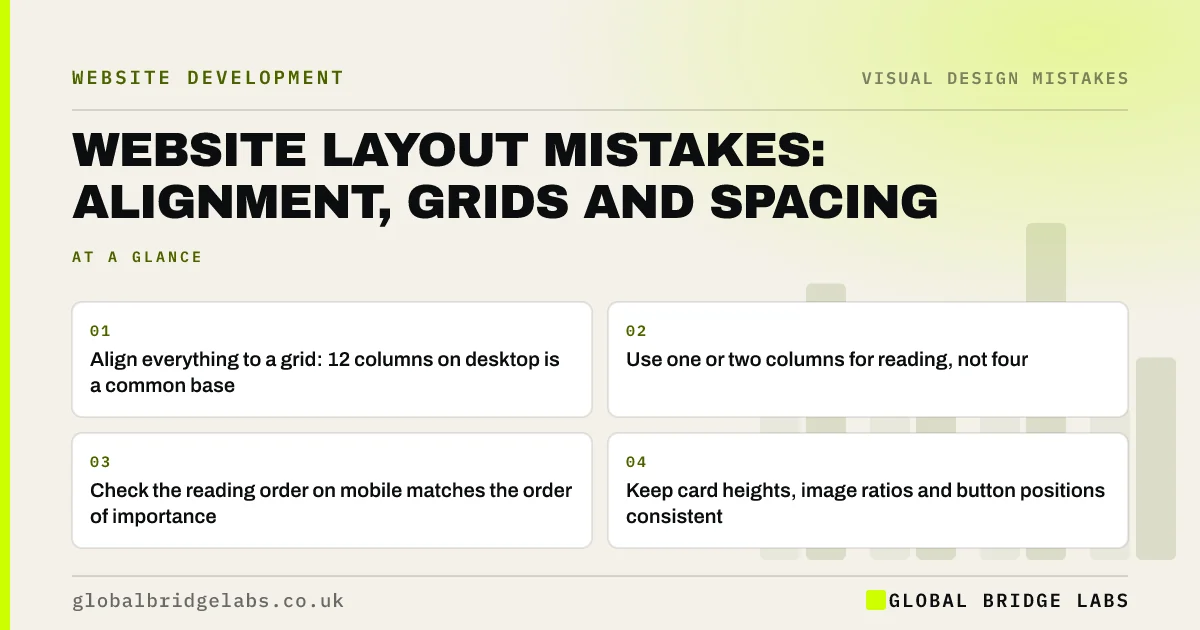
- Align everything to a grid: 12 columns on desktop is a common base.
- Use one or two columns for reading, not four.
- Check the reading order on mobile matches the order of importance.
- Keep card heights, image ratios and button positions consistent.
Want your layout tidied up? Message us on WhatsApp.
Chat on WhatsApp →What is a website layout?
A website layout is the arrangement of content on a page: columns, sections, alignment and the order elements appear in on different screen sizes. A good layout makes the page easy to scan and the next step obvious. A poor one makes visitors work out where to look.
Mistake 1: nothing lines up
When headings, text, images and buttons start at slightly different positions, the page looks messy even if visitors cannot say why. Align elements to shared edges. A quick test is to hold a ruler or a straight edge against the screen: most items should share a left edge.
Mistake 2: no grid
A grid is an invisible set of columns that elements snap to. Without one, every section is laid out differently. A 12-column grid on desktop, collapsing to four columns on mobile, is a common base that most frameworks and site builders support.
Mistake 3: too many columns
Three or four narrow text columns force short lines and make visitors zig-zag across the page. Use one column for reading and save multiple columns for scannable items such as service cards or team photos. On phones, almost everything should be one column.
Mistake 4: uneven cards and images
Service or product cards with different image ratios, text lengths and button positions create ragged rows that look unfinished. Use the same image ratio, similar text lengths and buttons aligned to the bottom of each card.
Mistake 5: a confusing order on mobile
When a desktop layout collapses, columns stack in code order, which may not be the order of importance. A sidebar with a booking form can end up below the footer links, or an image can push the headline off the first screen. Check every key page on a phone and reorder sections where needed.
Want your mobile layout checked? Message us on WhatsApp and we will discuss your requirements.
Chat on WhatsApp →Mistake 6: content touching the edges
Text that runs to the very edge of the screen on mobile, or images that cause sideways scrolling, look broken. WCAG's Reflow criterion expects content to fit a 320px-wide screen without horizontal scrolling. Keep consistent side padding and check nothing overflows.
Mistake 7: a different layout on every page
When each page is designed separately, visitors meet a new structure each time. Reuse a small set of section patterns: hero, text with image, cards, proof, call to action. Familiar patterns let visitors focus on content.
What does this look like in practice?
A pattern we see: a services page built with a page builder has four different section styles, cards of uneven height and a contact form that falls below the footer on mobile. Rebuilding it from three reusable patterns on one grid tidies the page and fixes the mobile order in the same pass.
Layout checklist
- Align elements to shared left edges.
- Use a grid on every page.
- Use one column for reading text.
- Keep card image ratios and buttons consistent.
- Check the mobile order of every key page.
- Check for sideways scrolling at 320px wide.
- Reuse a small set of section patterns.
Next step
Open your main service page on a phone and write down the order sections appear in. Is the most important first?
Message us on WhatsApp for a layout review, or book a 30-minute consultation.
Chat on WhatsApp →Sources and further reading
- Visual hierarchy in UX: definition · Nielsen Norman Group
- Understanding SC 1.4.10: Reflow · W3C Web Accessibility Initiative
- Responsive web design basics · web.dev (Google)
Frequently asked questions
What makes a good website layout?
A clear grid, consistent alignment, one column for reading, plenty of space between sections, and an order that puts the most important content and the next step first on every screen size. Reusing a few section patterns keeps pages consistent.
Why does my website layout look messy?
Usually because elements do not share alignment, sections use different spacing and patterns, or cards have uneven heights and image ratios. Aligning to a grid and standardising spacing fixes most of it without changing content.
How many columns should a website have?
A 12-column grid on desktop is a common base, but reading text should sit in one column. Use two to four columns for scannable items such as cards. On phones, almost everything should be a single column.
Written by

Global Bridge Labs (GBL) is a UK–Sri Lanka partner for social media, websites and BPO. Everything here comes from client delivery, not theory.