On this page
- 01Key takeaways
- 02What is cross-browser testing?
- 03Which browsers should a UK business test?
- 04What design faults does testing catch?
- 05How do you test without lots of devices?
- 06What should you test in each browser?
- 07When should you test?
- 08What does this look like in practice?
- 09Cross-browser checklist
- 10Next step
- 11Sources and further reading
- 12Frequently asked questions
Key takeaways
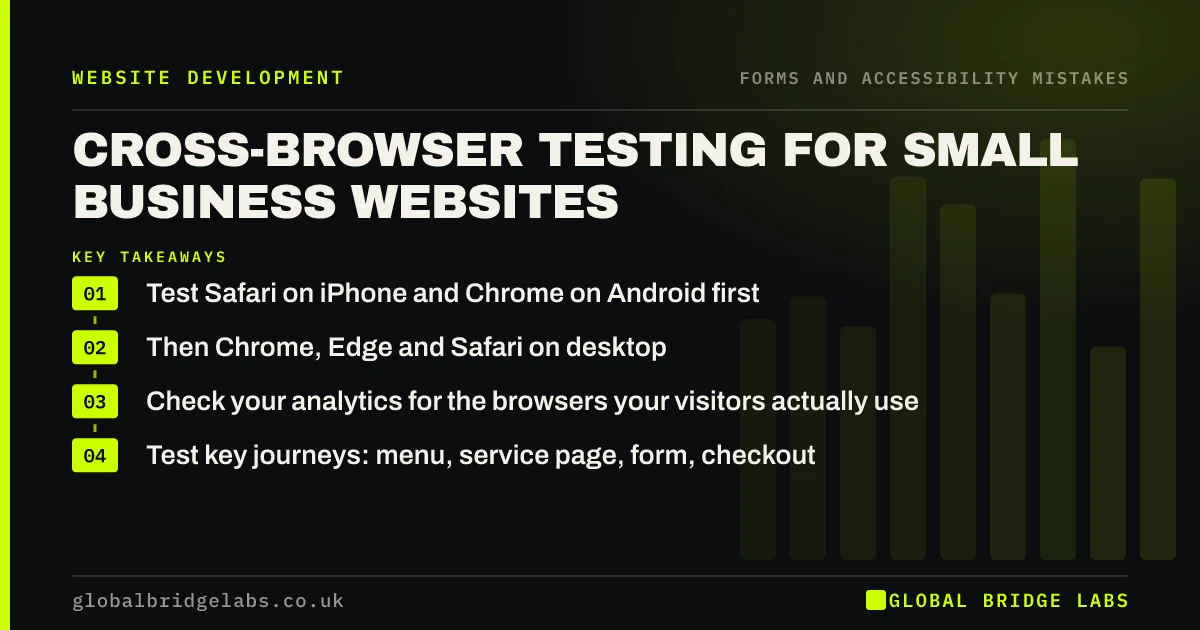
Cross-browser testing means checking your website works in the browsers and devices your customers use, not just the one your designer uses. In the UK that means at least Safari on iPhone, Chrome on Android and Chrome, Edge and Safari on desktop. It catches broken layouts, unusable forms and missing buttons before customers find them.
- Test Safari on iPhone and Chrome on Android first.
- Then Chrome, Edge and Safari on desktop.
- Check your analytics for the browsers your visitors actually use.
- Test key journeys: menu, service page, form, checkout.
Want your site tested across browsers? Message us on WhatsApp.
Chat on WhatsApp →What is cross-browser testing?
Cross-browser testing is checking that a website looks and works correctly in different browsers, browser versions and devices. Browsers interpret code slightly differently, so a layout perfect in Chrome on a laptop may break in Safari on an iPhone.
Which browsers should a UK business test?
Start with the browsers your visitors use. Google Analytics 4 shows browser and device breakdowns. StatCounter publishes UK browser market share, which typically shows Chrome and Safari well ahead, with Edge and Samsung Internet behind. The GOV.UK Service Manual's guidance on testing browsers and devices is a useful reference.
What design faults does testing catch?
Testing catches faults that are invisible on the designer's own setup.
- Layouts that overlap or break on Safari.
- Fonts that fail to load or fall back badly.
- Sticky headers or menus that cover content on iPhone.
- Form fields and date pickers that behave differently.
- Buttons or images that disappear.
- Videos that will not play or play with no controls.
How do you test without lots of devices?
Use the phones and computers you and your team already have to cover Safari on iPhone, Chrome on Android and desktop browsers. Browser developer tools can simulate screen sizes, though not every browser quirk. Paid cloud testing services give access to many real devices if you need more coverage.
Want a cross-browser check before launch? Message us on WhatsApp and we will discuss your requirements.
Chat on WhatsApp →What should you test in each browser?
Test journeys, not just pages. In each browser, open the homepage, use the menu, read a service page, send the contact form and, for shops, add to basket and reach checkout. Check the confirmation arrives.
When should you test?
Test before launch, after any significant change, after platform or plug-in updates, and when major browser updates arrive. A quick monthly check of the contact form on an iPhone and an Android phone catches most problems early.
What does this look like in practice?
A pattern we see: a site built and reviewed on Windows laptops launches with a contact form button hidden behind the keyboard on iPhones. A five-minute check on an iPhone before launch would have caught it.
Cross-browser checklist
- Check analytics for visitors' browsers.
- Test Safari on iPhone and Chrome on Android.
- Test Chrome, Edge and Safari on desktop.
- Test menu, service page, form and checkout.
- Confirm form submissions arrive.
- Retest after updates and changes.
Next step
Send your own contact form from an iPhone and an Android phone this week.
Message us on WhatsApp for a testing review, or book a 30-minute consultation.
Chat on WhatsApp →Sources and further reading
- Browser market share, United Kingdom · StatCounter
- Designing for different browsers and devices · GOV.UK Service Manual
- Simulate mobile devices with device mode · Chrome for Developers
Frequently asked questions
Which browsers should I test my website on?
At minimum, Safari on iPhone, Chrome on Android, and Chrome, Edge and Safari on desktop. Check Google Analytics for the browsers your visitors actually use and include any with a meaningful share, such as Samsung Internet.
Why does my website look different in different browsers?
Browsers interpret code, fonts and layout features slightly differently, and some support newer features before others. Testing in the main browsers and using well-supported code avoids most differences.
How often should I test my website in different browsers?
Before launch, after any significant change or update, and periodically, such as a quick monthly check of the contact form on an iPhone and an Android phone.
Written by

Global Bridge Labs (GBL) is a UK–Sri Lanka partner for social media, websites and BPO. Everything here comes from client delivery, not theory.